
Windows Optimizer brings the Windows settings that affect disk space into one place, and manages the virtual disks of WSL, Docker and Hyper-V.
It has two tabs: Windows Tweaks and Virtualization & Containers.
Windows Tweaks
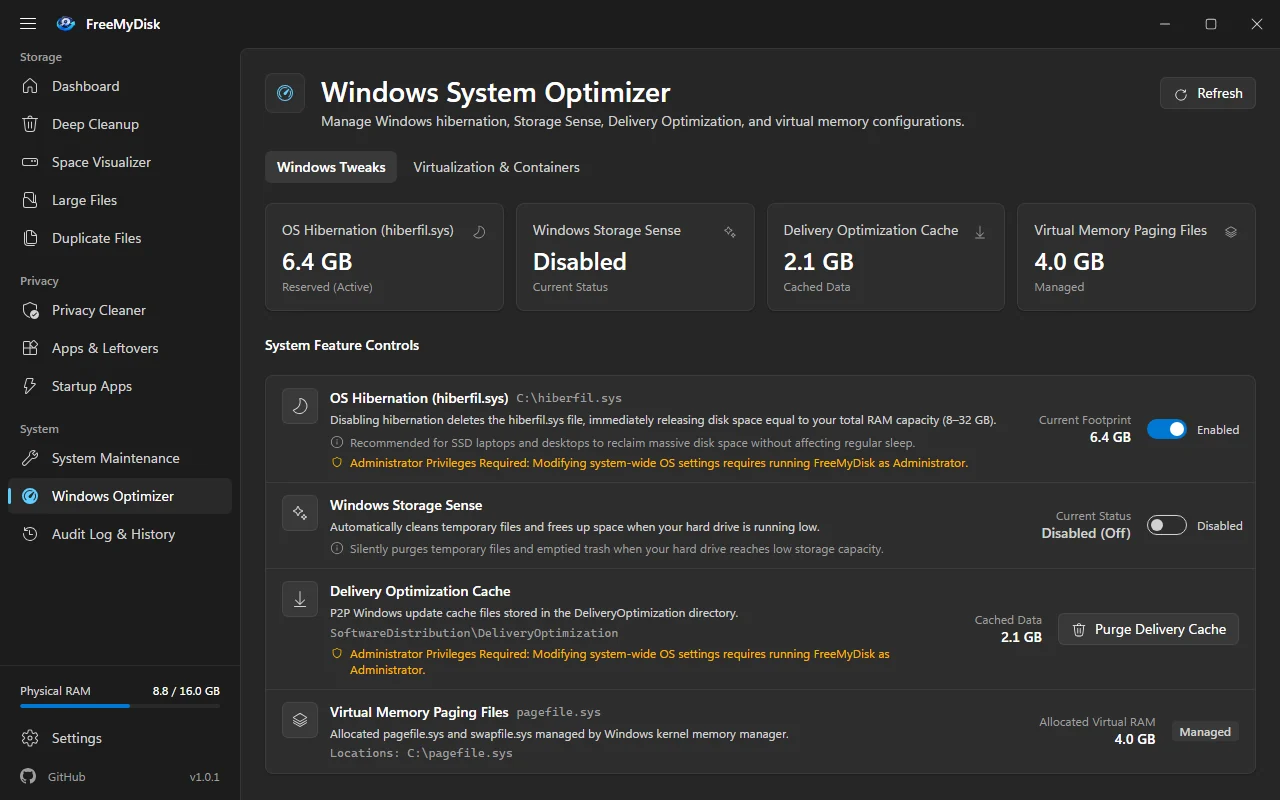
System feature controls
| Control | What it does |
|---|---|
| OS Hibernation (hiberfil.sys) | Shows the size of the hibernation file and turns hibernation on or off. Turning it off deletes hiberfil.sys and also turns off Fast Startup. Sleep keeps working |
| Windows Storage Sense | Turns on Windows’ own automatic cleanup of temporary files and the Recycle Bin |
| Delivery Optimization Cache | Shows the size of the update-sharing cache. Purge Delivery Cache removes it |
| Virtual Memory Paging Files | Shows where the page file is and how big it is. FreeMyDisk only shows it, because the page file should stay |
Changing hibernation or Delivery Optimization changes system settings, so Windows shows a UAC prompt.
Explorer and privacy tweaks
Below the controls are switches for common Windows settings, each reversible:
- Show file extensions and hidden files
- Open File Explorer to This PC
- Turn off Bing results in Start menu search
- Classic right-click menu on Windows 11
- End task in the taskbar right-click menu
- Show seconds in the taskbar clock
- Turn off the advertising ID and activity history upload
- Allow long file paths
- Shorter menu delay
- Turn off Game DVR background recording
- Turn off Copilot
- Turn off NTFS last-access time updates
Virtualization & Containers
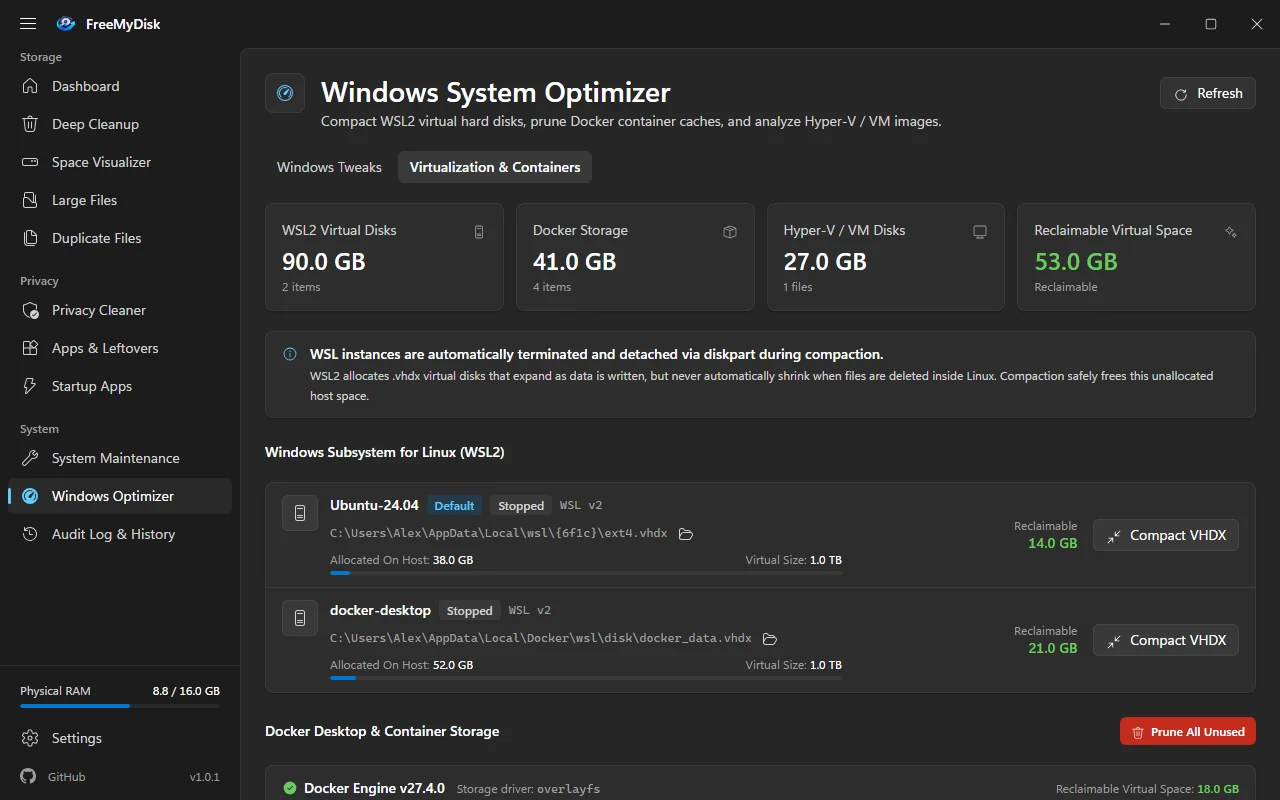
Docker Desktop and every WSL 2 distribution keep their data in .vhdx virtual disk files. These files grow as you use them, but never shrink on their own, even after you delete data inside Linux. This tab fixes that.
- WSL distributions: each one with its state, WSL version, the size of its virtual disk on your drive, and an estimate of how much compaction can reclaim. Compact VHDX shuts the distribution down and compacts its disk, then shows how much space was freed.
- Docker: the space used by images, containers, local volumes and the build cache, and how much is reclaimable. Prune All Unused removes stopped containers, unused networks, dangling images and the build cache. Volumes are never pruned, because they hold databases and other data.
- Hyper-V and VM disks: the virtual machine disks found on your PC and their sizes, so you can see how much your VMs take.
Tip Prune Docker first, then compact its virtual disk. Pruning frees space inside the disk; compacting gives that space back to Windows.