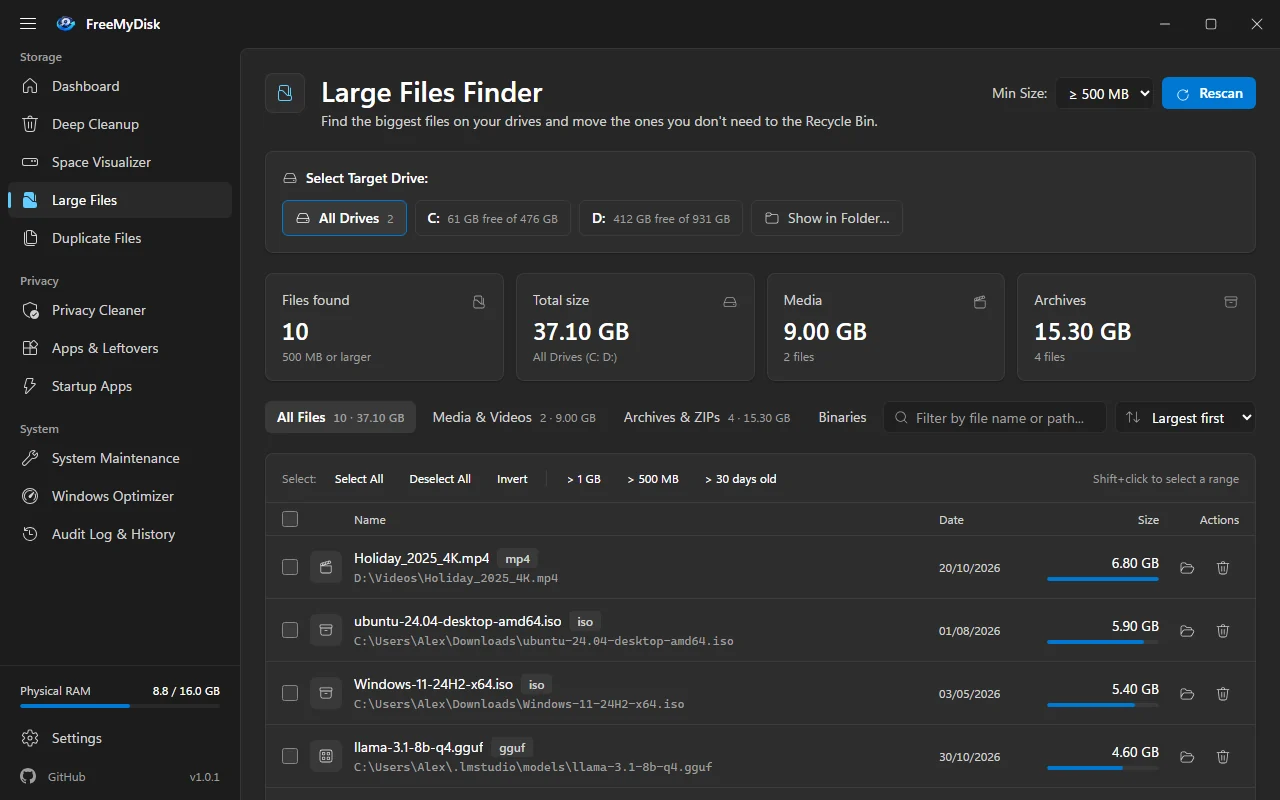
Large Files lists the biggest files on your drives, so you can find the forgotten ISO, video or backup that is using your space and move it to the Recycle Bin.
Find large files
- Choose a Min Size. It starts at the value from Settings › Large file threshold, 500 MB by default.
- Choose All Drives or a single drive. Show in Folder… limits the scan to one folder.
- Select Scan.
The summary shows how many files were found, their total size, and how much of that is media and archives.
Filter, sort and select
- Category tabs: All Files, Media & Videos, Archives & ZIPs and Binaries.
- Search by file name or path, and sort with Largest first or by date.
- Quick selections: > 1 GB, > 500 MB and > 30 days old, plus Select All, Deselect All and Invert. Hold Shift and click to select a range.
- Each row has buttons to open the folder that contains the file and to move that file to the Recycle Bin on its own.
When you are ready, Move to Recycle Bin at the bottom moves every selected file. Nothing is deleted for good until you empty the Recycle Bin.
What is never listed
To keep you from removing something Windows or an app needs, Large Files never lists:
- System files such as
pagefile.sys,hiberfil.sysandswapfile.sys - Files inside Windows,
Program Filesand other protected folders - App data that isn’t a cache, such as WSL and virtual machine disks in AppData
- OneDrive files that are online-only. Files kept on this PC are listed.
Related
- Space Visualizer: see which folders are big, not just which files
- Duplicate Files: find copies of the same file