Startup Apps lists every program that starts when you sign in to Windows, how much each one slows down your boot, and lets you turn them off.
What you see
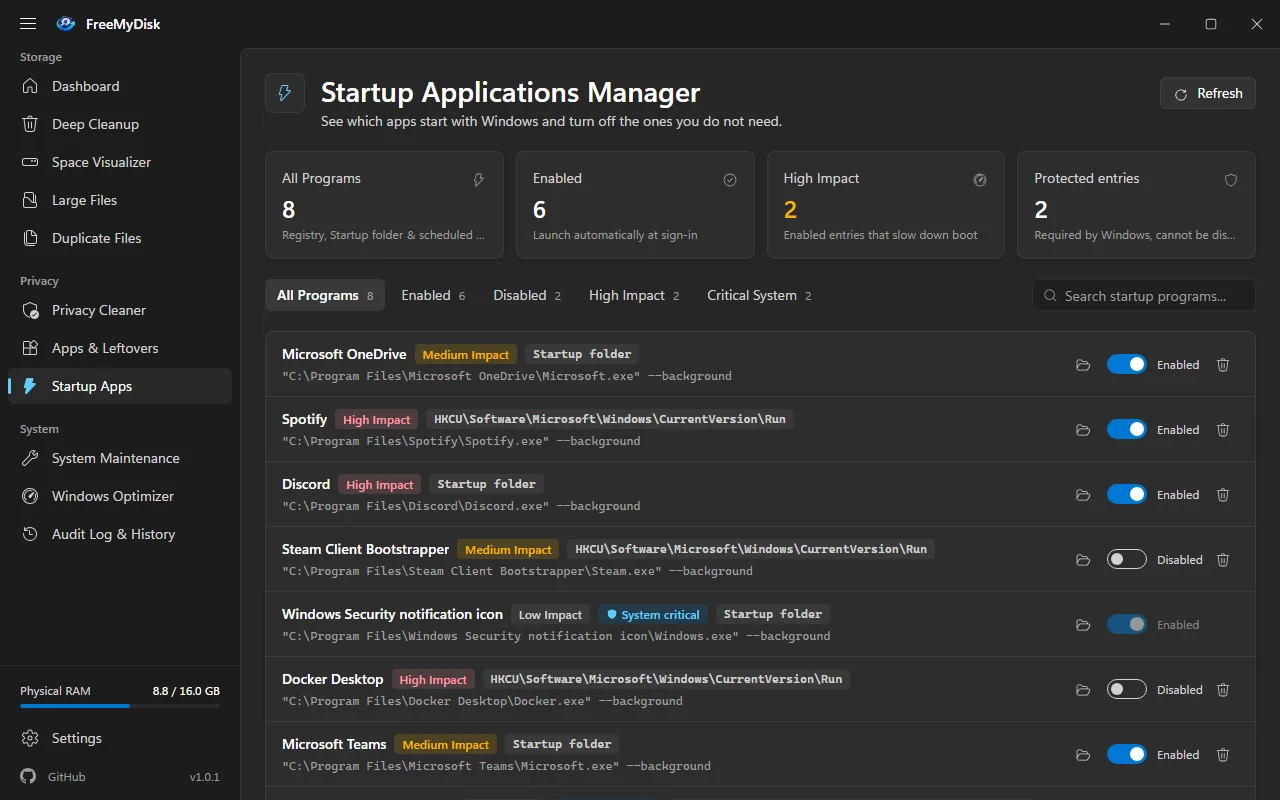
The cards at the top count All Programs, how many are Enabled, how many have High Impact, and the Protected entries Windows needs.
Each entry shows:
- its name and impact (Low, Medium or High), based on how much it does at sign-in;
- where it starts from: the registry Run key for your account (
HKCU\Run), the one for all users (HKLM\Run), or your Startup folder; - the command it runs.
Filter with All Programs, Enabled, Disabled, High Impact and Critical System, or search by name.
Turn programs off and on
- Use the switch to disable or enable an entry. Disabling only stops it from starting automatically. The program stays installed and you can still open it yourself.
- The folder button opens the program’s location.
- The delete button removes the startup entry completely. Prefer the switch unless you know the entry is broken.
Entries marked System critical, such as Windows Security, are protected and can’t be turned off from here.
What to turn off first
High-impact apps you don’t need the moment you sign in are the best candidates: chat apps, game launchers, music players, and helper apps for printers or peripherals you rarely use. Restart afterwards to feel the difference.
Related
- Apps and Leftovers: uninstall programs you don’t use at all