

You clean up your drive, free 20 GB, and three weeks later Windows is warning you about low disk space again. If that sounds familiar, the problem isn’t that you didn’t clean enough. Something on your PC is growing in the background, and until you find it, every cleanup is temporary.
This guide lists the 12 most common reasons a C: drive keeps filling up on Windows 10 and 11, how to tell which one is yours, and how to fix the cause rather than just the symptom.
The short answer Open Settings › System › Storage › Show more categories and see which category is largest. The usual causes are Windows Update leftovers, app and browser caches, restore points and hiberfil.sys, Docker or WSL virtual disks, AI models, and a log or dump file that keeps growing. Fix the cause, then check again a week later.
If your drive is almost full right now
When C: has less than a gigabyte or two free, Windows itself starts to struggle: updates fail, apps crash while saving, and the PC may slow down. Before you investigate, free a little breathing room with steps that are safe and quick:
- Empty the Recycle Bin. Right-click it on the desktop and choose Empty Recycle Bin, after a quick look inside.
- Clear your temporary folder. Press Win + R, type
%TEMP%, select everything and delete it, skipping files that are in use. - Run Disk Cleanup. Type
cleanmgr, choose C:, and tick Temporary files, Thumbnails and Delivery Optimization Files. - Restart. A restart releases files held by apps and often shrinks the page file.
That usually frees a few gigabytes, which is enough to work safely while you find the real cause.
Why it matters to keep free space
A nearly full system drive causes more problems than “no room for new files”:
- Windows Update needs room to download and unpack updates. Feature updates can need 20 GB or more, and fail with confusing errors when it isn’t there.
- SSDs slow down when full. They need free space to manage wear and write efficiently. Many get noticeably slower above about 85–90% full.
- The page file and hibernation file can’t grow, so apps crash under memory pressure and hibernation fails.
- Apps fail to save. Browsers, editors and games write temporary files constantly, and a full drive can corrupt a half-written file.
That is why the goal isn’t only to clean, but to stop the drive from refilling.
First, find out what is growing
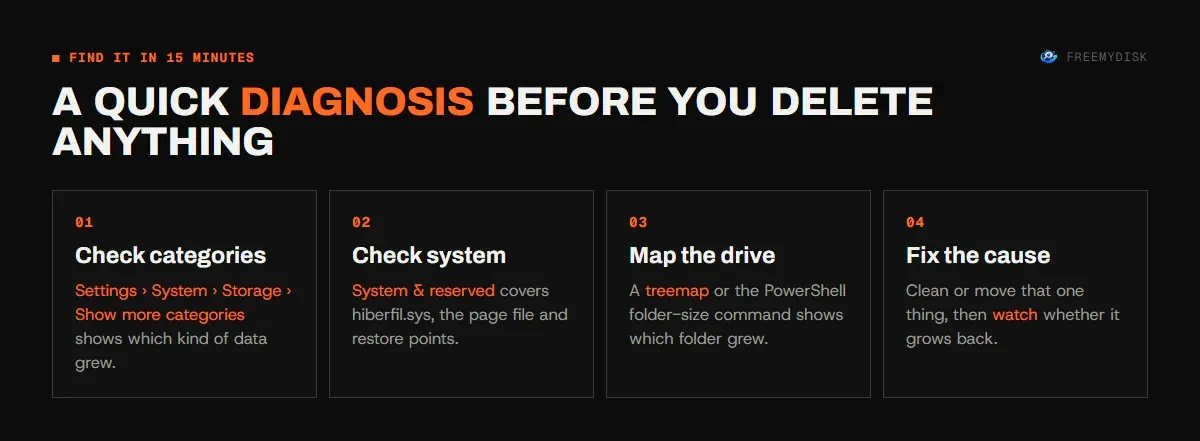
Guessing wastes time. Spend fifteen minutes finding out where the space is before you delete anything.
-
Check the categories. Open Settings › System › Storage and select Show more categories. Windows shows how much space Apps, Temporary files, System & reserved, Documents, Pictures, Other and the rest use.
-
Check System & reserved. If it is large, the cause is the hibernation file, the page file, restore points or Windows itself.
-
Map the drive. A treemap shows the biggest folders at a glance. Without one, this PowerShell command lists the largest folders in your user profile:
Get-ChildItem $env:USERPROFILE -Directory -Force -ErrorAction SilentlyContinue | ForEach-Object { [pscustomobject]@{ GB = [math]::Round(((Get-ChildItem $_.FullName -Recurse -File -Force -ErrorAction SilentlyContinue | Measure-Object Length -Sum).Sum / 1GB), 2); Folder = $_.FullName } } | Sort-Object GB -Descending | Select-Object -First 15 -
Watch it. Write down the numbers, then check again a week later. Whatever grew is your culprit.
Find files that changed recently
If space disappears quickly, the cause is usually a file that is being written right now. This command lists the largest files changed in the last three days:
Get-ChildItem C:\ -Recurse -File -Force -ErrorAction SilentlyContinue |
  Where-Object LastWriteTime -gt (Get-Date).AddDays(-3) |
  Sort-Object Length -Descending | Select-Object -First 20 @{n='GB';e={[math]::Round($_.Length/1GB,2)}}, LastWriteTime, FullName
Run it in an administrator terminal so it can read every folder. It takes a few minutes on a full drive.
The 12 most common causes
1. Windows Update downloads and old components
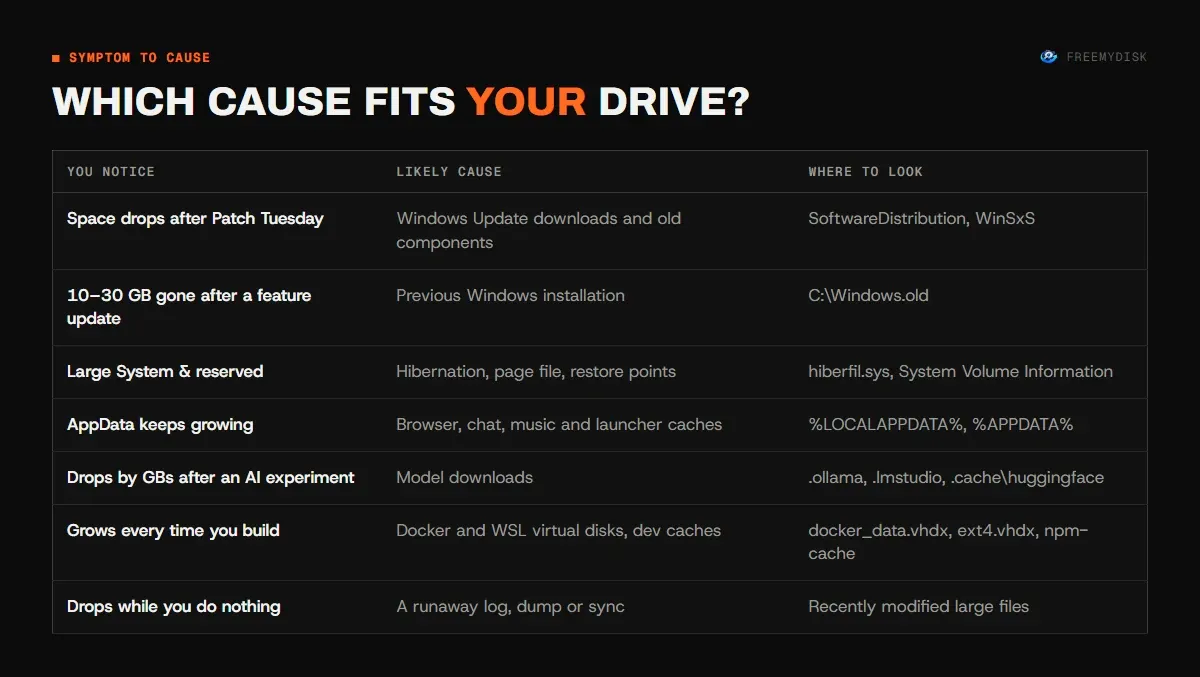
Every month, Windows downloads cumulative updates into C:\Windows\SoftwareDistribution\Download, keeps update pieces for sharing in the Delivery Optimization cache, and keeps older versions of updated files in C:\Windows\WinSxS. Windows cleans part of this on its own schedule, but it can still add several gigabytes.
Fix: run Disk Cleanup with Clean up system files and tick Windows Update Cleanup and Delivery Optimization Files. Our guides to clearing the Windows Update cache and the WinSxS folder go into detail.
2. A previous Windows installation
After a feature update, your old Windows is kept in C:\Windows.old so you can go back. It is often 10–30 GB, and it appears overnight.
Fix: Windows removes it on its own after about 10 days. Once you are happy with the new version, remove it sooner with Disk Cleanup’s Previous Windows installation(s). See what every Disk Cleanup option does.
3. The hibernation file
hiberfil.sys is about 40% of your RAM by default. On a PC with 32 GB of RAM, that is about 13 GB, and if you add RAM, it grows.
Fix: shrink it with powercfg /h /type reduced, or remove it with powercfg /h off if you don’t use Hibernate. Our hiberfil.sys and pagefile.sys guide explains the trade-offs.
4. The page file
pagefile.sys grows when your apps use a lot of memory, and it may stay large until the next restart.
Fix: restart, and keep Automatically manage paging file size on. If C: is small, move most of the page file to a second fast SSD.
5. System Restore points
Each restore point keeps copies of system files that changed. Windows creates them before updates and driver installs, and they can take 5–10% of the drive.
Fix: search for Create a restore point, select drive C:, choose Configure and lower Max Usage to something like 5%. Windows deletes the oldest points to fit.
6. Browser caches
Every browser and every profile keeps its own cache, often 1–3 GB each. With several browsers and profiles, that adds up quickly, and it all grows back.
Fix: clear the cache regularly, or turn on clearing the cache on exit. See how to clear the browser cache.
7. Chat, music and meeting app caches
Discord, Teams, Slack, WhatsApp, Zoom and Spotify all keep caches in AppData. Spotify’s offline songs alone can be tens of gigabytes.
Fix: clear their cache folders with the app closed, and limit offline storage in each app’s settings. See what is safe to delete in AppData.
8. Game launchers and shader caches
Steam, Epic Games, Battle.net and your graphics driver keep shader caches and downloaded update files. Big games also download updates of 10–50 GB before installing them.
Fix: clear shader caches from Disk Cleanup (DirectX Shader Cache) or the GPU control panel, and move your game library to another drive from the launcher’s settings.
9. Developer caches and project folders
npm, pnpm, Yarn, pip, Cargo, Gradle, Maven and NuGet keep a copy of every package version you have ever installed. Each project also has its own node_modules, .venv or target folder.
Fix: clear the package caches with their own commands, and delete dependency folders of finished projects. See clearing the npm, pnpm and Yarn cache.
10. Docker and WSL virtual disks
Docker Desktop and every WSL distribution store their data in .vhdx files that grow as you use them but never shrink on their own, even after you delete things inside.
Fix: prune Docker, clean up inside Linux, then compact the virtual disks. See reclaiming space from Docker and WSL.
11. AI models
One local AI model is 2–40 GB. Trying a few models in Ollama, LM Studio or ComfyUI, or running Python projects that download from Hugging Face, can fill a drive in a day.
Fix: remove models you don’t use with each tool’s own command, and move model folders to another drive. See how much space AI apps use.
12. Runaway logs, dumps and sync
Sometimes a single file grows without limit: an app writing a debug log, a crash that saves a dump every few minutes, a backup tool keeping every version, or OneDrive downloading a whole shared library.
Fix: use the “recently changed” PowerShell command above to find it, then fix the app that writes it: turn off its debug logging, update it, or reconfigure the sync. Large .log, .etl and .dmp files are the usual signs.
Other places to check
- The Recycle Bin. Files you delete still use space until it is emptied. Storage Sense can empty it automatically.
- Downloads. Installers and archives you only needed once. Sort by size.
- Windows Search index. The index in
C:\ProgramData\Microsoft\Searchis normally a few hundred megabytes. If it has grown to many gigabytes, rebuild it from Settings › Privacy & security › Searching Windows › Advanced indexing options › Advanced › Rebuild. - Other user accounts. Each account has its own profile, caches and Recycle Bin.
- Duplicates. Copies of the same photos or videos in several folders. See finding duplicate files safely.
- Large forgotten files. ISOs, old VMs, videos and backups. See how to find large files.
Could it be malware?
It is possible, but it is rarely the answer. Malware that fills a drive is uncommon compared with all the normal causes above. If space disappears very fast, you find no normal cause, and the “recently changed” command shows strange files in unusual places, run a Full scan in Windows Security › Virus & threat protection, and an offline scan if anything is found.
What can live on another drive?
If you have a second drive, moving the right things there is the most lasting fix of all:
| Can move | How |
|---|---|
| Documents, Pictures, Videos, Music, Downloads | Right-click the folder › Properties › Location › Move |
| Steam, Epic and other game libraries | The launcher’s Storage or Library settings |
| Docker Desktop’s disk image | Docker Settings › Resources › Advanced › Disk image location |
| WSL distributions | wsl --export and wsl --import |
| Ollama and Hugging Face models | The OLLAMA_MODELS and HF_HOME environment variables |
| New apps from the Microsoft Store | Settings › System › Storage › Advanced storage settings › Where new content is saved |
Windows itself, Program Files and AppData should stay on C:. Moving them with links or registry edits isn’t supported and breaks updates.
How to stop it happening again
- Turn on Storage Sense and set it to run every month. See how to set up Storage Sense.
- Keep at least 15–20% free on C:. Windows updates and the page file need room.
- Put big things on another drive: game libraries, media, Docker’s disk image, AI models and virtual machines.
- Clean caches monthly: browsers, chat apps and developer tools.
- Check once a quarter with a treemap, so you notice growth before it becomes a problem.
Find the cause in minutes with FreeMyDisk
FreeMyDisk is a free, open-source disk cleaner for Windows 10 and 11, built to answer exactly this question: where did my space go, and what is safe to do about it?
- The Dashboard and Space Visualizer treemap show what is using your drive at a glance.
- 122 cleanup rules cover the causes in this guide: Windows temporary files and update downloads, crash dumps and shader caches, 16 browsers, chat and music apps, game launchers, developer tools and AI apps.
- Windows Optimizer lists WSL distributions, Docker and Hyper-V disks, and compacts WSL virtual disks.
- Large Files and Duplicate Files find what no automatic rule can judge.
- Every item has a risk label and the app that owns it, removals go to the Recycle Bin first, and a crash-safe journal records each step. No telemetry, no ads, no account.
Summary
- A C: drive that keeps filling up has a cause that grows in the background. Find it before cleaning.
- Use Settings › Storage › Show more categories, a treemap and the recently changed files command.
- The usual causes are updates, Windows.old, hibernation and page files, restore points, browser and app caches, games, developer caches, Docker and WSL, AI models and runaway logs.
- Fix the cause, move big things to another drive, keep 15–20% free and let Storage Sense handle the routine.
Frequently asked questions
Why does my C: drive keep filling up by itself?
Usually because something grows in the background: Windows Update downloads and old components, app and browser caches, restore points, the hibernation file, Docker or WSL virtual disks, AI model downloads, or a log or crash dump that keeps growing. Settings › System › Storage shows which category is largest, which points to the cause.
How do I find out what is filling my C: drive?
Open Settings › System › Storage › Show more categories to see which kind of data is largest. Then use a treemap tool, or a PowerShell folder-size command, to find the exact folder. Compare it again a week later to see what grew.
Can a virus fill up my C: drive?
It is possible but rare. Far more often the cause is a normal app, cache, update or log that has grown out of control. If space disappears very quickly and you can't find any normal cause, run a full scan with Microsoft Defender, and check which files changed most recently.
How much free space should I keep on C:?
Aim for at least 15–20% of the drive, and never less than about 20 GB. Windows needs room for updates, the page file and temporary files, and SSDs slow down when they are almost full.
Will moving apps to another drive help?
Sometimes. Games and large apps that let you choose an install location can live on another drive, and so can Docker's disk image, AI models and your media. Windows itself, and most apps' AppData, must stay on C:.