
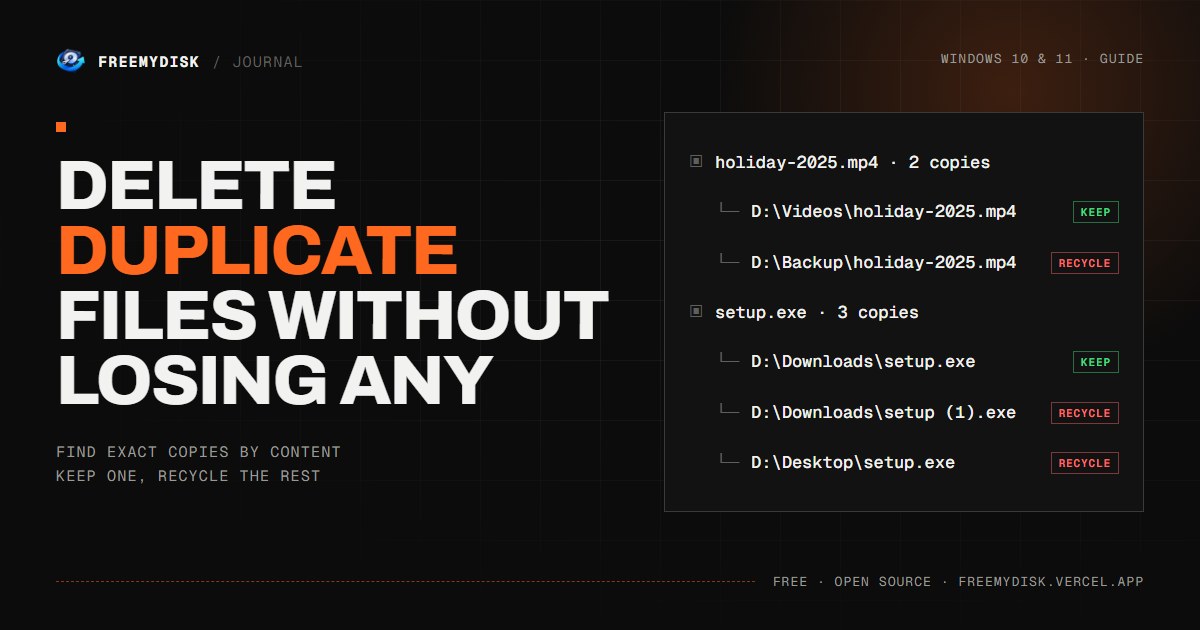
Duplicate files build up quietly. You download the same installer twice, import a phone’s photos into two different apps, copy a project folder “just in case”, or let a backup tool and a sync tool both keep a copy. None of these looks big on its own, but on a drive full of photos and videos, duplicates can easily waste 10–50 GB.
This guide shows how to find duplicates reliably, by their content rather than their names, how to choose which copy to keep, and which “duplicates” you must never delete.
The short answer Windows has no built-in duplicate finder. Use a tool or script that compares file content (a hash), not names. Keep the copy in your organised folders, send the rest to the Recycle Bin, and never remove duplicates inside
C:\Windows,Program FilesorAppData.
What counts as a duplicate?
There are three kinds of “duplicate”, and only one of them is safe to delete automatically:
- Exact duplicates. Two files with exactly the same bytes, whatever their names or dates. Deleting all but one loses nothing. This is what this guide is about.
- Same name, different content.
report.docxin two folders might be two different versions. These are not duplicates. - Similar files. A photo and its edited version, a song at two bitrates, or a resized copy of an image look alike but aren’t identical. Finding them needs visual or audio comparison, and choosing between them is a personal decision.
Where duplicates come from
Knowing how duplicates appear helps you find them faster, and stops them coming back:
- Repeated downloads. Browsers save a second download as
file (1).exeinstead of replacing the first. Downloads is usually the folder with the most duplicates. - Phone imports. Importing the same phone into the Photos app, OneDrive camera upload and a manual copy creates two or three copies of every picture.
- “Just in case” copies. Copying a folder before reorganising it, then never deleting the old one.
- Backup and sync overlap. A backup tool copying a folder that is also synced to the cloud, onto the same drive.
- Email and chat attachments. Saving the same attachment from several messages, or from both the desktop app and the browser.
- Moving between PCs. Copying “everything” from an old PC onto a new one that already had some of the same files from the cloud.
Check a single pair by hand
If you only want to know whether two specific files are identical, you don’t need a script. Ask PowerShell for both hashes:
Get-FileHash "D:\Videos\holiday.mp4", "D:\Backup\holiday.mp4" -Algorithm SHA256If the two Hash values match, the files are identical and either one can go. If they differ, even slightly, the files are different, however similar their names, sizes or dates look.
How exact duplicate detection works
The reliable way to find exact duplicates is to compare a hash of each file. A hash is a short fingerprint calculated from every byte of a file. If two files have the same hash, they are identical. If even one byte differs, the hash is completely different.
Hashing every file on a big drive would be slow, so good tools work in stages:
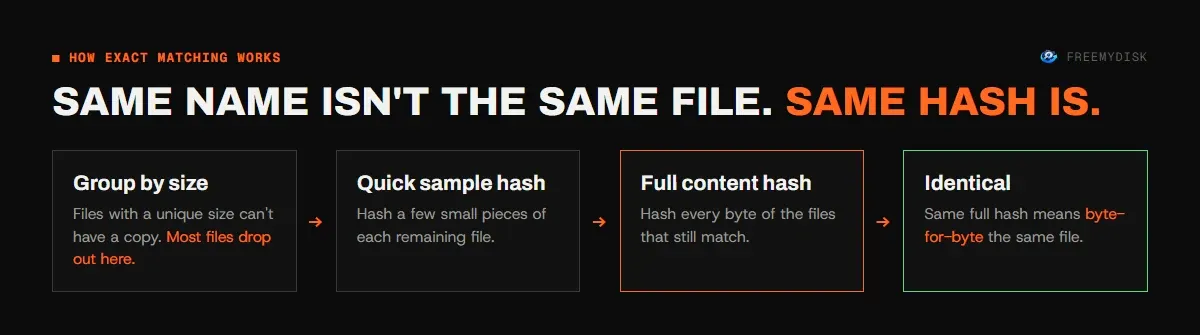
- Group by size. Files with a size no other file has can’t have a duplicate. This step removes most files without reading them.
- Hash a sample. For files that share a size, hash a few small pieces first. Files that differ there are dropped.
- Hash the full content of the files that are still candidates.
- Files with the same full hash are byte-for-byte identical.
Method 1: Find duplicates with PowerShell
You can do exact duplicate detection with PowerShell’s built-in Get-FileHash, no extra software needed. This script finds duplicates of 1 MB or more in a folder you choose and lists them by wasted space.
-
Open Terminal or Windows PowerShell.
-
Change the first line to the folder you want to check, then paste the whole script:
$root = "$env:USERPROFILE\Pictures"   # folder to scan
$min  = 1MB                           # ignore smaller files

Get-ChildItem $root -Recurse -File -ErrorAction SilentlyContinue |
  Where-Object Length -ge $min |
  Group-Object Length | Where-Object Count -gt 1 |
  ForEach-Object { $_.Group | Get-FileHash -Algorithm SHA256 } |
  Group-Object Hash | Where-Object Count -gt 1 |
  ForEach-Object {
    $size = (Get-Item $_.Group[0].Path).Length
    [pscustomobject]@{
      WastedMB = [math]::Round($size * ($_.Count - 1) / 1MB, 1)
      Copies   = $_.Count
      Files    = ($_.Group.Path -join "`n")
    }
  } | Sort-Object WastedMB -Descending | Format-List
The script groups files by size first, so it only hashes files that could be duplicates. On a large photo library it can still take several minutes, because every candidate is read in full.
It only lists duplicates. It doesn’t delete anything. Review the list, then delete the copies you don’t want from File Explorer, so they go to the Recycle Bin.
Careful Don’t pipe the results straight into
Remove-Item. Deleting from PowerShell bypasses the Recycle Bin, and a script can’t know which copy a photo app or a project depends on.
How long does a scan take?
Most of the time goes into reading files for the full hash, so speed depends on how many large files share a size and on how fast the drive is:
- An SSD reads several hundred megabytes to a few gigabytes per second. A folder of family photos is usually done in a minute or two.
- A hard disk is much slower, especially with many small files. A large video archive can take 15–30 minutes.
- A USB 2.0 drive or a network share is the slowest. Scan it overnight, or copy only the folder you need to an SSD first.
Raising the minimum size from 1 MB to 10 or 100 MB makes scans much faster and still finds the duplicates that waste the most space.
Method 2: Use a duplicate finder app
A duplicate finder app does the same work with a list you can click through, preview and tick. When you choose one, look for these features:
- Content comparison (hash or byte-by-byte), not just name and size.
- Hard link detection, so it never offers two names for the same data as duplicates.
- Keep rules, such as keep oldest, newest or shortest path, to pre-select copies.
- Recycle Bin by default, so mistakes can be undone.
- Protected folders, so it never suggests removing files from Windows or app folders.
Which copy should you keep?
The hardest part isn’t finding duplicates. It is deciding which copy to keep, especially when there are hundreds of them. A simple rule applied consistently works better than choosing one by one.
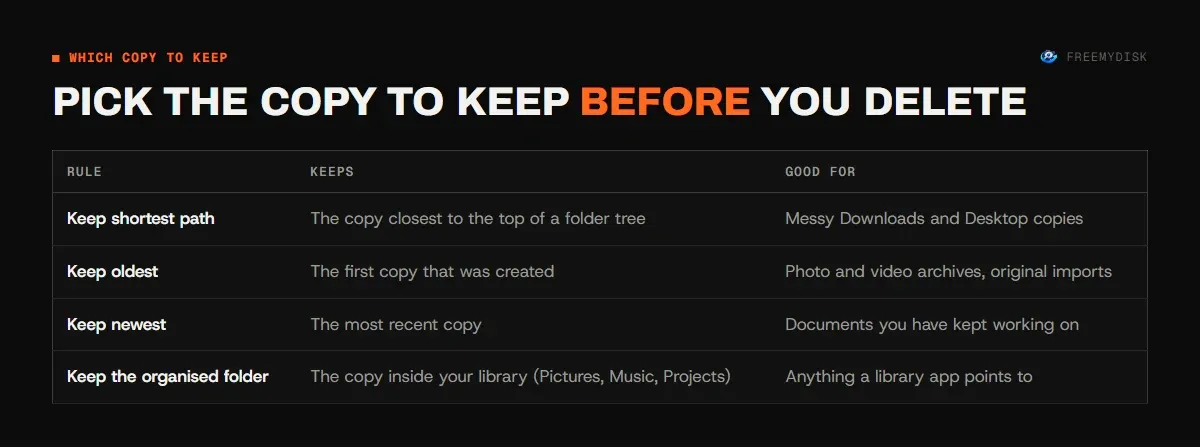
Some practical guidance:
- Keep the copy in your library. If one copy is in
Pictures\2024\Summerand another inDownloads, keep the one in Pictures. - Keep the copy your apps point to. Photo apps such as Lightroom, music apps and video editors store paths to files. If you remove the copy the app uses, the app shows it as missing, even though another copy exists elsewhere.
- Keep the original date. For photos and videos, the oldest copy usually has the original creation date, which apps use to sort your timeline.
- Remove copies in temporary places first: Downloads, Desktop, “New folder”,
Copy of …,(1)and(2)names, and old backup folders.
Duplicates you should never delete
Not every duplicate is waste. These are identical on purpose:
| Where | Why the copies are there |
|---|---|
C:\Windows, C:\Windows\WinSxS |
Many system files exist in several places, often as hard links. Removing them breaks Windows |
C:\Program Files, C:\Program Files (x86) |
Apps ship their own copies of shared libraries (.dll), and each app loads its own |
AppData and ProgramData |
Apps keep their own copies of icons, fonts, runtimes and caches |
| Game folders | Games often repeat assets per level or language pack. Use the launcher’s Verify tool instead |
node_modules, .venv and other project folders |
Package managers copy the same package into every project by design |
Version-controlled folders (.git) |
Git keeps its own copy of every file |
A good rule: only look for duplicates in your own folders, such as Documents, Pictures, Videos, Music, Downloads, Desktop and your data drives.
Cloud sync folders need extra care
OneDrive, Dropbox and Google Drive sync deletions. If you delete a duplicate inside a synced folder, it is deleted from the cloud and every other device too. That is fine when it really is a duplicate, but check two things first:
- Both copies are not the same file seen twice. If a folder is synced to two places, such as OneDrive and a backup drive that mirrors OneDrive, the “duplicate” might be the only copy on one side.
- Online-only files are not downloaded just for the check. Hashing an online-only file forces it to download. Scan synced folders only when you have the space and bandwidth for it.
Photos and music: watch out for “near duplicates”
Photo libraries often contain the same picture in several forms: the original from the camera, an edited JPEG, a resized copy for sharing, and a HEIC version from a phone. They look like duplicates, but they aren’t identical, so a content-based finder won’t group them. That is the safe behaviour.
If you want to remove near duplicates, do it inside the photo or music app that manages the library, so its catalogue stays correct.
Stop duplicates from coming back
- Pick one place for photos. Let one app or one cloud service import from your phone, and turn off camera upload in the others.
- Open files from Downloads instead of downloading again. Sort Downloads by date and check before you click a download link a second time.
- Move, don’t copy, when reorganising. Use Cut and Paste (Ctrl + X, Ctrl + V) instead of copying, so there is never a second version left behind.
- Back up to a different drive. A backup on the same drive as the original wastes space and doesn’t protect you if that drive fails.
- Check once a quarter. A quick scan of Downloads, Desktop, Pictures and Videos every few months keeps duplicates from piling up.
After you clean: get the space back
Duplicate finders that work safely move files to the Recycle Bin, so the space is not free yet. Keep them there for a few days, open your photo and music apps, check your important folders, and then empty the Recycle Bin.
Find duplicates safely with FreeMyDisk
FreeMyDisk is a free, open-source disk cleaner for Windows 10 and 11. Its Duplicate Files Finder follows every rule in this guide:
- Exact match only. Files are grouped by size, then compared with a fast sample hash and a full BLAKE3 content hash. Two files are listed together only when every byte matches.
- Hard links are detected and never selected, so you can’t “delete a copy” that frees nothing or removes the only data.
- Overlapping scan folders are handled. The same file reached through two scan paths is counted once and never offered as its own duplicate.
- Auto-select rules: keep oldest, keep newest or keep shortest path, and one copy of every set is always kept.
- Duplicate folders are found too, not just files.
- Recycle Bin first, a crash-safe journal, and system and app folders are left out.
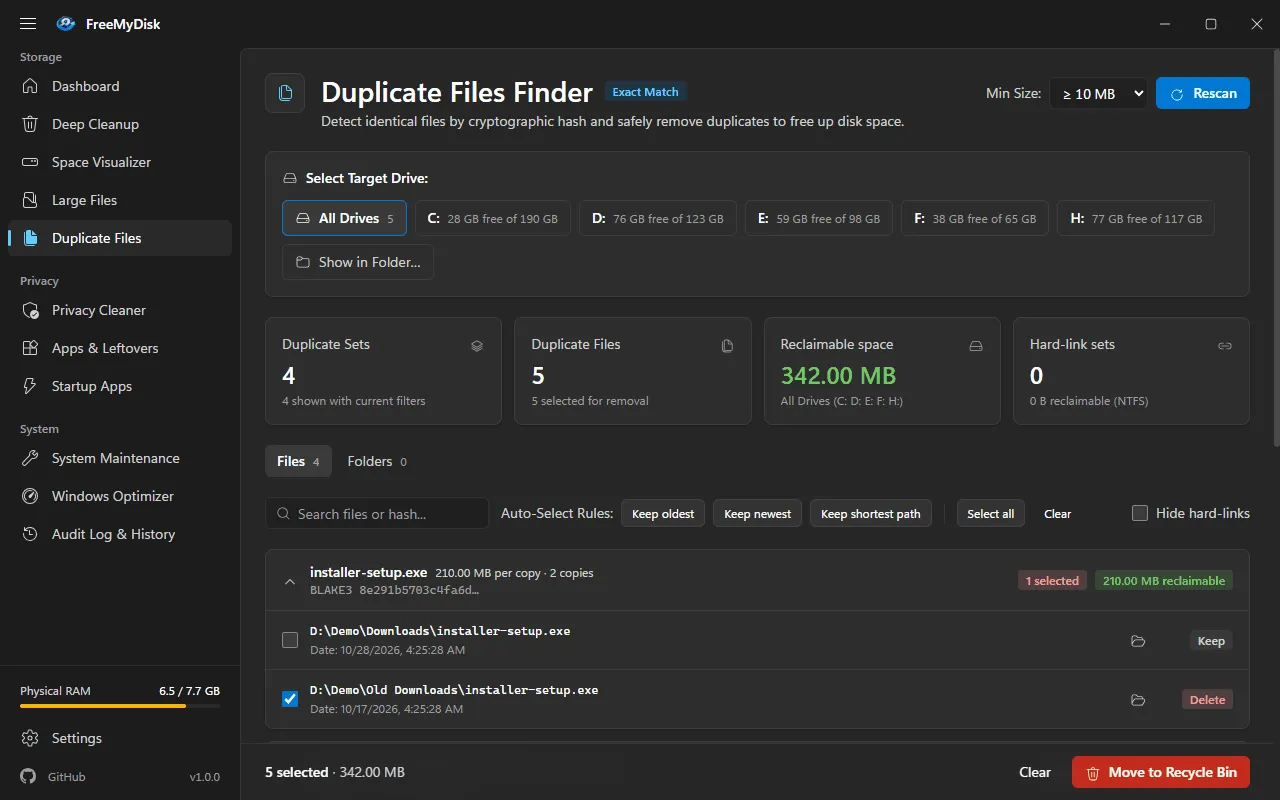
It runs on all your drives at once, has no telemetry, no ads and no account, and its code is open for anyone to check.
Summary
- Windows has no duplicate finder. Compare content (a hash), never just names.
- Use the PowerShell script above to list duplicates, or a finder app with hard link detection and keep rules.
- Keep the copy in your organised folders or the one your apps point to.
- Never remove duplicates in Windows, Program Files, AppData, games or project folders.
- Delete to the Recycle Bin, check your libraries, then empty it.
Frequently asked questions
Does Windows have a built-in duplicate file finder?
No. Windows 10 and 11 can't find duplicates on their own. You can find them with a short PowerShell script that compares file hashes, or with a duplicate finder app that compares file contents.
Is it safe to delete duplicate files?
It is safe to delete exact copies of your own files, such as photos, videos, documents and downloads, as long as you keep one copy. It is not safe to remove duplicates inside C:\Windows, Program Files, ProgramData or AppData, where apps often need their own copy of the same file.
How do I know two files are really identical?
Compare their content, not their names. Two files with the same hash, for example the same SHA-256 from Get-FileHash, are byte-for-byte identical. Files with the same name can be completely different, and identical files often have different names.
Which duplicate should I keep?
Keep the copy inside your organised folders, such as Pictures or a project folder, and remove copies in Downloads, Desktop or old backup folders. If a photo or music app manages the library, keep the copy that app points to.
What are hard links, and are they duplicates?
A hard link is a second name for the same data on an NTFS drive. Two hard-linked paths look like duplicates but use the space only once, so deleting one frees nothing. A good duplicate finder detects hard links and never offers them as copies to delete.