Most disk cleanup is a chore you remember only when Windows warns that your drive is full. Storage Sense is Windows’ own way of doing part of that chore for you, on a schedule, without you having to think about it. It is built into Windows 10 and 11, it is free, and once it is set up properly it quietly keeps temporary files and the Recycle Bin under control.
This guide explains every Storage Sense setting, recommends safe values, shows how to run it on demand, and is clear about what it can’t do, so you know what still needs a manual cleanup.
The short answer Open Settings › System › Storage, turn on Storage Sense, then open it and turn on Automatic User content cleanup. Set Run Storage Sense to Every month, keep Recycle Bin at 30 days, and leave Downloads at Never unless you treat Downloads as a temporary folder.
What Storage Sense is
Storage Sense is a set of cleanup rules that Windows runs automatically. It was introduced in Windows 10 and is part of Settings › System › Storage in both Windows 10 and 11. It replaces much of what people used to do with Disk Cleanup by hand, and Microsoft recommends it over the older tool.
It handles four things:
- Temporary files created by Windows and apps.
- The Recycle Bin, emptying items that have been there for a while.
- The Downloads folder, removing files you haven’t opened in a long time, if you allow it.
- OneDrive files, making files you haven’t opened recently online-only, so they stop using local space.
How to turn on Storage Sense in Windows 11
- Open Settings with Win + I.
- Go to System › Storage.
- Under Storage management, turn on Storage Sense.
- Select Storage Sense itself (the arrow next to the switch) to open its settings.
Turning it on with the switch only enables temporary file cleanup. The schedule and the Recycle Bin, Downloads and OneDrive rules only run once Automatic User content cleanup is on, which is why the next step matters.
Every setting, explained
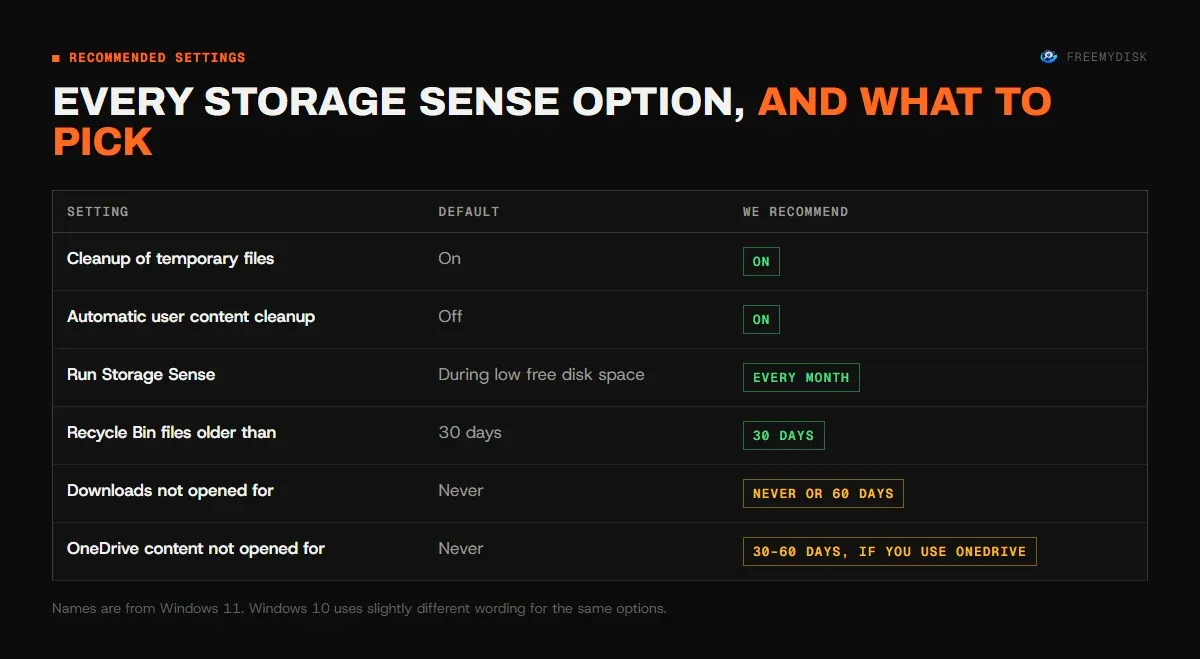
Cleanup of temporary files
“Keep Windows running smoothly by automatically cleaning up temporary system and app files.”
This removes temporary files that Windows and apps no longer need, including old files in your %TEMP% folder. It is safe for everyone and should stay on.
Automatic User content cleanup
This is the main switch for the scheduled cleanup. While it is off, Storage Sense doesn’t run on a schedule, and the Recycle Bin, Downloads and OneDrive rules below are not applied. Turn it on.
Run Storage Sense
How often Storage Sense runs:
- Every day, Every week or Every month.
- During low free disk space (the default): only when Windows decides the drive is running out of room.
The default means Storage Sense often never runs until there is already a problem. Every month is a better choice for most people. On a small drive, such as a 128 or 256 GB laptop, choose Every week.
Delete files in my Recycle Bin if they have been there for over
Never, 1, 14, 30 or 60 days. The default, 30 days, is a sensible balance: you have a month to change your mind about anything you deleted.
If you use the Recycle Bin as a safety net for big cleanups, as we recommend, keep it at 30 days or more. Shorter settings free space faster but leave less time to restore a mistake.
Delete files in my Downloads folder if they haven’t been opened for more than
Never, 1, 14, 30 or 60 days. The default is Never, and for most people that is the right choice.
Careful This rule deletes your downloaded files, not just temporary ones. Many people keep documents, photos and installers in Downloads for years. Turn this on only if you move anything you want to keep out of Downloads straight away, and choose 60 days to give yourself time.
Locally available cloud content
If you use OneDrive, each account has its own rule: Content will become online-only if not opened for more than a number of days.
This doesn’t delete anything. Files stay in OneDrive and in File Explorer, with a cloud icon. When you open one, it downloads again. It is an excellent way to free space if you keep photos or projects in OneDrive, as long as you are usually online. Choose 30 or 60 days.
Files you have marked Always keep on this device are never made online-only.
Run Storage Sense now
You don’t have to wait for the schedule. At the bottom of the Storage Sense page, select Run Storage Sense now. Windows applies all your rules immediately and shows how much space it freed.
Windows 10: where the settings are
In Windows 10, the same options are in a slightly different place:
- Open Settings › System › Storage.
- Turn on the Storage Sense switch at the top.
- Select Configure Storage Sense or run it now.
- Set Run Storage Sense, the Recycle Bin and Downloads rules, and the OneDrive rule.
- Under Free up space now, select Clean now to run it immediately.
Windows 10 also has an option to Delete previous versions of Windows on the same page, which removes the Windows.old folder after a feature update. Windows 11 lists it under Temporary files instead.
Cleanup recommendations in Windows 11
Next to Storage Sense, Windows 11 has Settings › System › Storage › Cleanup recommendations. It doesn’t run on its own. Instead, it suggests things to remove, grouped into:
- Temporary files, such as the Recycle Bin, Downloads and Windows Update leftovers.
- Large or unused files from your user folders.
- Files synced to the cloud that could be made online-only.
- Unused apps that you haven’t opened in a long time.
It is a good place for a quick manual review once in a while. Read each list before you tick anything, because the Downloads item there also deletes your downloaded files.
What Storage Sense doesn’t clean
Storage Sense is good at what it does, but it only covers a small part of a modern PC’s clutter. These are outside its scope:
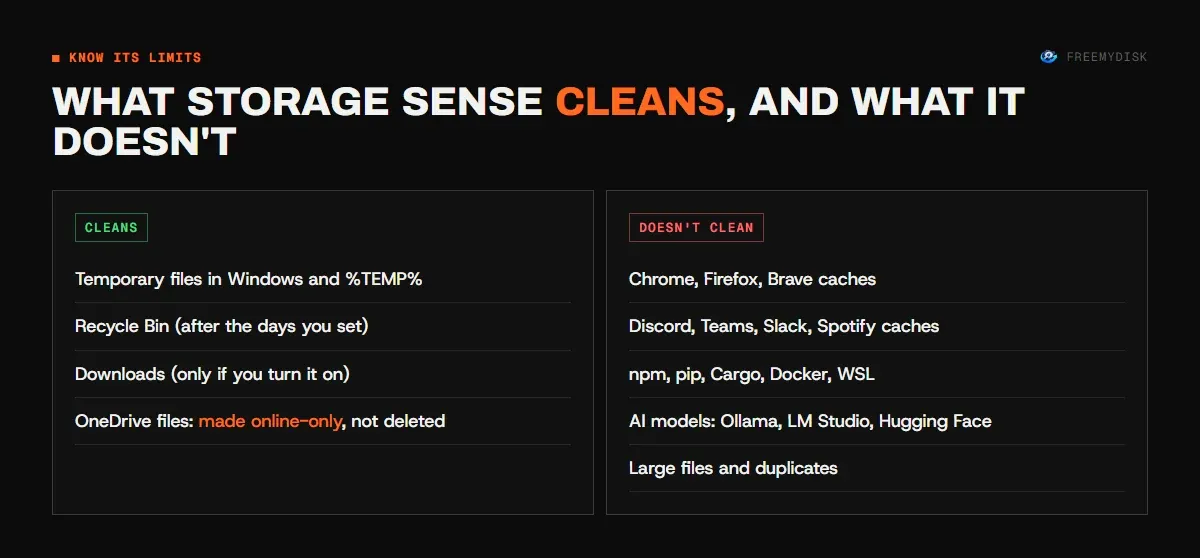
- Browser caches. Chrome, Edge, Firefox and Brave keep their own caches, often several gigabytes. Our browser cache guide shows how to clear them.
- App caches. Discord, Teams, Slack, Spotify, Zoom and game launchers keep caches in AppData. See what is safe to delete in AppData.
- Developer caches. npm, pnpm, pip, Cargo, Gradle, Maven, NuGet, Docker and WSL can hold tens of gigabytes. See our Docker and WSL guide.
- AI models from Ollama, LM Studio and Hugging Face. See how much space AI apps use.
- Large files and duplicates you have forgotten about. See how to find large files.
- The component store. Superseded Windows Update files in
WinSxSare cleaned by Disk Cleanup’s Windows Update Cleanup or DISM. See what the WinSxS folder is.
Storage Sense, Disk Cleanup or a dedicated cleaner?
The three overlap, but each has a different job:
| Storage Sense | Disk Cleanup | A dedicated cleaner | |
|---|---|---|---|
| Runs automatically | Yes, on a schedule | No (only with a scheduled preset) | Depends on the tool |
| Temporary files and Recycle Bin | Yes | Yes | Usually |
| Windows Update leftovers in WinSxS | No | Yes, with system files | Some tools |
| Browser and app caches | No | Only Internet Explorer and old Edge | Yes |
| Developer and AI caches | No | No | Some tools |
| Large files and duplicates | No (Cleanup recommendations lists large files) | No | Some tools |
| Explains what each item is | Briefly | Briefly | Depends on the tool |
The practical answer is to use more than one. Let Storage Sense handle the routine automatically, run Disk Cleanup now and then for Windows’ own leftovers, and use a cleaner for the app, developer and AI caches that neither of them covers. When you choose a cleaner, prefer one that shows what each item is and sends removals to the Recycle Bin.
How much space does Storage Sense free?
It depends on how long it has been since anything was cleaned. The first run on a PC that has never been cleaned often frees one to several gigabytes, mostly from temporary files and a full Recycle Bin. After that, monthly runs usually free a few hundred megabytes each time, which is exactly the point: the junk never gets a chance to pile up.
If the first run frees almost nothing but your drive is still full, the space is somewhere Storage Sense doesn’t look. Open Settings › System › Storage › Show more categories to see which category is large, or use a treemap to find out.
Storage Sense on work and school PCs
On a PC managed by an organisation, Storage Sense may be configured centrally, and some options may be greyed out with a message that your organisation manages them. Administrators set it with Group Policy under Computer Configuration › Administrative Templates › System › Storage Sense, or with Intune. The policies mirror the settings above: whether Storage Sense is allowed, how often it runs, and the Recycle Bin, Downloads and cloud content thresholds.
Troubleshooting
Storage Sense doesn’t seem to run. Check that Automatic User content cleanup is on. With only the main switch on, the scheduled rules don’t apply. Then check Run Storage Sense isn’t set to During low free disk space.
It freed almost nothing. That is normal on a PC that is already tidy, or where most of the space is in app caches, developer tools or large files that Storage Sense doesn’t cover.
Downloads disappeared. The Downloads rule was turned on. Check the Recycle Bin first; if it has also been emptied by Storage Sense, restore from File History, OneDrive’s version history or a backup if you have one. Then set the Downloads rule back to Never.
OneDrive files show a cloud icon. That is the cloud content rule working as intended. Right-click a folder and choose Always keep on this device for anything you need offline.
A complete routine
Storage Sense works best as part of a simple routine:
- Storage Sense, monthly, for temporary files and the Recycle Bin.
- Disk Cleanup with system files, every few months, for Windows Update leftovers. Our guide to every Disk Cleanup option explains each box.
- App and developer caches, monthly or when space runs low.
- Large files and duplicates, a few times a year.
Clean what Storage Sense misses with FreeMyDisk
FreeMyDisk is a free, open-source disk cleaner for Windows 10 and 11 that covers the gaps Storage Sense leaves, with the same safety-first approach:
- 122 cleanup rules for browsers, chat and music apps, game launchers, developer tools, Docker and WSL, and AI apps, plus the Windows temporary categories.
- A large file finder, a duplicate finder and a treemap, to find the space no automatic rule can judge for you.
- A risk label and owning app for every item, and big or valuable caches are never selected for you.
- Recycle Bin first, which works well with Storage Sense: FreeMyDisk moves items to the Recycle Bin, and Storage Sense empties them after the number of days you chose.
- No telemetry, no ads and no account.
Summary
- Turn on Storage Sense and Automatic User content cleanup in Settings › System › Storage.
- Run it monthly, keep the Recycle Bin at 30 days, and leave Downloads at Never unless you are sure.
- Use the OneDrive rule to make old files online-only without deleting them.
- Select Run Storage Sense now for an immediate cleanup.
- Storage Sense doesn’t touch browser, app, developer or AI caches, large files or duplicates. Clean those separately.
Frequently asked questions
What does Storage Sense do?
Storage Sense automatically deletes temporary files, empties old items from the Recycle Bin, can remove old files from Downloads, and can make OneDrive files online-only after a period you choose. It runs on a schedule or when your drive is low on space.
Is Storage Sense safe to turn on?
Yes, with the default settings. Temporary file cleanup and Recycle Bin cleanup are safe for everyone. The only option that removes personal files is the Downloads cleanup, which is off (Never) by default. Leave it off unless you treat Downloads as a temporary folder.
Does Storage Sense delete my files?
Only if you turn on the Downloads cleanup or have items in the Recycle Bin older than the time you set. OneDrive cleanup doesn't delete anything: it makes files online-only, so they stay in the cloud and download again when you open them.
How do I run Storage Sense now?
Open Settings › System › Storage › Storage Sense and select Run Storage Sense now at the bottom of the page. On Windows 10, open Settings › System › Storage › Configure Storage Sense or run it now, and select Clean now.
What doesn't Storage Sense clean?
Browser caches, chat and music app caches, game launcher caches, developer caches such as npm, pip and Docker, AI models, and large or duplicate files. It also doesn't clean Windows Update leftovers in the component store; use Disk Cleanup's Windows Update Cleanup for those.