
Your drive is almost full, and you are sure something big is hiding on it. Usually you are right. A forgotten ISO, an old virtual machine disk, a few long videos or a zip backup from three years ago can easily add up to 20 or 30 GB.
This guide shows four reliable ways to find large files on Windows 10 and 11, from the built-in tools to a single PowerShell command. It then helps you decide, file by file, what is safe to delete, what to move and what to leave alone.
The short answer Open File Explorer, select This PC, type
size:giganticin the search box and sort by Size. That lists every file over 4 GB. For files over 1 GB, typesize:>1GBinstead.
Method 1: File Explorer’s size filters
File Explorer can search by size, but it doesn’t advertise it. Type a size filter into the search box and it finds every matching file under the folder you are in.
- Open File Explorer and select This PC to search all drives, or open a specific drive or folder.
- Click the search box at the top right.
- Type one of the filters below and press Enter.
- Switch to Details view with Ctrl + Shift + 6, then click the Size column header to sort largest first.
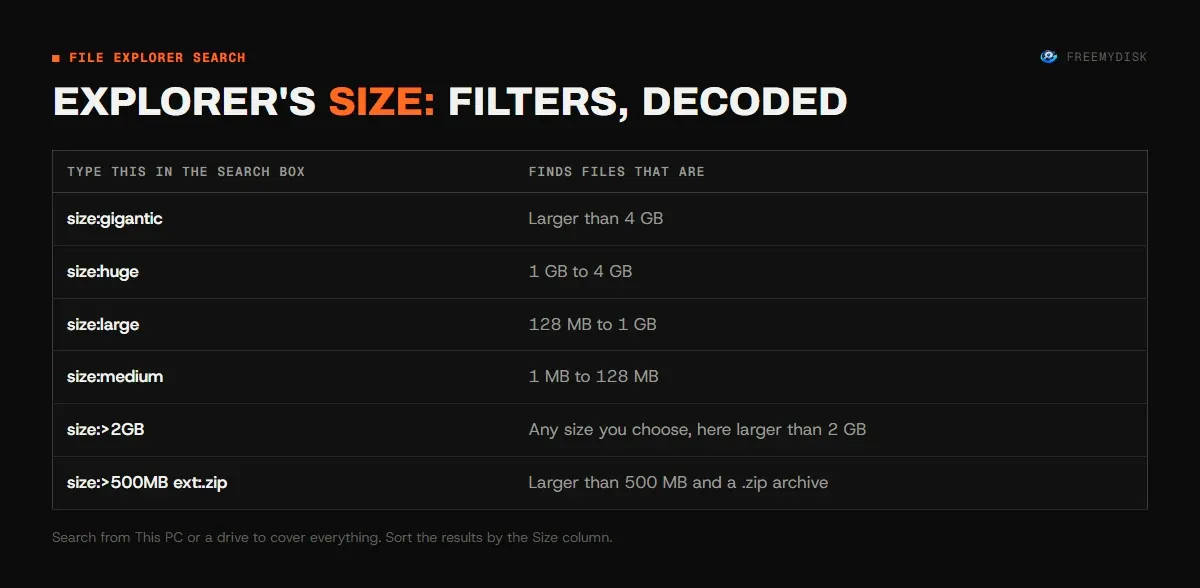
Useful combinations:
size:>1GBfinds anything over 1 GB.size:>500MB kind:videofinds large videos only.size:>500MB ext:.isofinds large disk images.size:>200MB datemodified:<2024finds big files you haven’t changed in a long time.
To see where a result lives, right-click it and choose Open file location.
Tip The first search of a whole drive can be slow, because Windows only indexes your user folders by default. Searching inside
C:\Users\YourNameis much faster, and that is where most large personal files are.
Method 2: Settings › Storage
Windows 11 has a built-in list of large files, hidden in the storage settings.
- Open Settings › System › Storage.
- Select Cleanup recommendations.
- Expand Large or unused files.
Windows lists big files from your user folders, with their sizes, and lets you tick the ones to delete. It also shows files that haven’t been opened for a long time, which are often good candidates.
On Windows 10, open Settings › System › Storage, select drive C:, and browse the categories such as Documents, Pictures, Videos and Other. Other shows the largest folders that don’t fit any category, which is often where big surprises are.
Both versions also show System & reserved, which includes the hibernation file, the page file and restore points. Those aren’t regular files you can delete, but our guide to hiberfil.sys and pagefile.sys shows how to shrink them safely.
Method 3: One PowerShell command
PowerShell gives you a precise, sortable list in seconds, without waiting for the search index.
-
Right-click Start and choose Terminal (or Windows PowerShell).
-
Paste this command and press Enter:
Get-ChildItem "$env:USERPROFILE" -Recurse -File -Force -ErrorAction SilentlyContinue |
  Sort-Object Length -Descending |
  Select-Object -First 25 @{n='GB';e={[math]::Round($_.Length / 1GB, 2)}}, LastWriteTime, FullName |
  Format-Table -AutoSize
It lists the 25 largest files in your user folder, with their size in gigabytes, the date they last changed and their full path.
To scan a whole drive, replace "$env:USERPROFILE" with C:\ and run the terminal as administrator, so it can read every folder. A whole-drive scan takes longer.
To save the list to a file you can open in Excel, add | Export-Csv "$env:USERPROFILE\Desktop\large-files.csv" -NoTypeInformation in place of the last line.
Find the largest folders, not just files
Sometimes there is no single huge file, just a folder full of medium ones. This command totals each folder inside your user profile:
Get-ChildItem "$env:USERPROFILE" -Directory -Force -ErrorAction SilentlyContinue | ForEach-Object {
  [pscustomobject]@{
    GB     = [math]::Round(((Get-ChildItem $_.FullName -Recurse -File -Force -ErrorAction SilentlyContinue | Measure-Object Length -Sum).Sum / 1GB), 2)
    Folder = $_.FullName
  }
} | Sort-Object GB -Descending | Format-Table -AutoSize
If AppData is near the top, the space is going to app caches, not your own files. Our complete guide to freeing up disk space covers those.
Method 4: A treemap
Lists are good at showing what is big. A treemap shows where the space is, at a glance. Every file is a rectangle sized by how much space it uses, grouped by folder, so a large file or a bloated folder jumps out immediately.
Several free tools draw treemaps of your drive. The idea is the same in all of them: scan once, then click the biggest blocks to see what they are. Treemaps are especially good at finding things you didn’t know to look for, such as a game’s replay folder, a forgotten node_modules or a camera import that was copied twice.
When the numbers don’t add up
Sometimes you add up every large file and folder you can find, and it is still far less than what Windows says is used. The missing space is almost always in one of these places:
- Hidden files and folders. Explorer hides
AppData,ProgramDataand files marked as hidden. In File Explorer, open View › Show › Hidden items on Windows 11, or tick Hidden items on the View tab on Windows 10. - Protected system files.
hiberfil.sys,pagefile.sysandswapfile.sysstay hidden even with hidden items shown. Settings › Storage lists them under System & reserved. - System Restore points. They live in
C:\System Volume Information, which no account can open. Check their size by searching for Create a restore point, selecting drive C: and choosing Configure. - Other user accounts. Each account has its own profile under
C:\Users, and your account may not be allowed to look inside. Sign in to that account, or run your search as administrator. - The Recycle Bin. Every account has its own, and deleted files still use space until it is emptied.
- Folders your account can’t read. Searches and PowerShell skip them silently. Run the PowerShell command as administrator to include them.
- Cloud placeholders. OneDrive’s Always keep on this device files take full space, while online-only files take almost none. Right-click the OneDrive folder and check which mode each folder uses.
If the gap is still large after checking these, a storage analyzer that runs as administrator will show it, because it reads every folder on the drive, not just yours.
Searching other drives and external disks
Everything in this guide works on any drive, not just C:. Two things to keep in mind:
- Windows Search doesn’t index external drives by default, so File Explorer searches there are slower. PowerShell is often faster on a USB drive or a large data disk.
- Network drives and NAS shares can take a long time to scan over Wi-Fi. Scan them from a wired connection, or run the scan on the NAS itself if it has a storage tool.
For a data drive full of photos or videos, sorting by size often isn’t enough. Duplicates are the more common problem there. Copying the same camera folder twice, or importing the same phone backup into two apps, can double the space without any single file looking big.
The usual suspects
When people find a surprise on their drive, it is usually one of these:
| What | Where it usually is | Typical size |
|---|---|---|
| ISO and disk images | Downloads | 1–6 GB each |
Old installers (.exe, .msi) |
Downloads | 50 MB–3 GB each |
| Videos and screen recordings | Videos, Desktop, game capture folders | 1–20 GB each |
Virtual machine disks (.vhdx, .vmdk, .vdi) |
Documents, Hyper-V or VirtualBox folders | 10–100 GB each |
WSL and Docker disks (ext4.vhdx, docker_data.vhdx) |
AppData\Local |
5–100 GB |
| Phone backups | AppData\Roaming\Apple Computer\MobileSync\Backup |
5–100 GB |
AI models (.gguf, .safetensors) |
.ollama, .lmstudio, .cache\huggingface |
2–40 GB each |
| Zip backups of old projects | Documents, Desktop | Varies |
What to do with each large file
Finding a large file is the easy part. Deciding what to do with it is where people make mistakes.
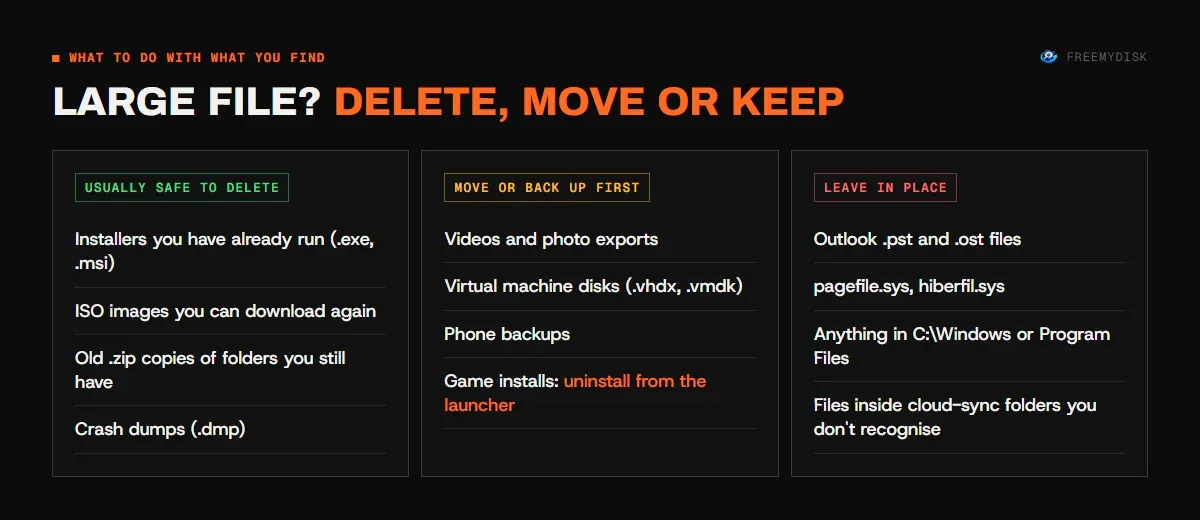
Usually safe to delete
- Installers you have already run. The program is installed. You can download the latest installer again if you ever need it.
- ISO images you can download again from the original source.
- Zip archives of folders you still have, once you have checked the folder is complete.
- Crash dumps (
.dmpfiles), unless you are working with support on a crash.
Move or back up first
- Videos, photos and recordings are often irreplaceable. Move them to an external drive or cloud storage, check they open, then delete the originals.
- Virtual machine disks. If you no longer use the VM, delete it from inside its app (Hyper-V Manager, VirtualBox, VMware) so its settings are removed too. If you still use it, move it with the app’s own move option.
- Phone backups. Move them with your phone software’s settings, or delete old backups from inside the app, not by hand.
- Games. Uninstall them from their launcher, or move them with the launcher’s move option. Deleting a game folder by hand leaves the launcher confused.
Leave in place
- Outlook
.pstand.ostfiles. A.pstmay be the only copy of old email. An.ostis rebuilt from the server, but Outlook must be closed and set up to do it. pagefile.sys,hiberfil.sysandswapfile.sys. Change their settings instead.- Anything inside
C:\Windows,C:\Program FilesorC:\ProgramDatathat you can’t identify. - Files in OneDrive, Dropbox or Google Drive folders. Deleting them deletes them from the cloud and every synced device. To free space without deleting, use Free up space (OneDrive) or the equivalent online-only option.
Careful Deleting a big file from File Explorer sends it to the Recycle Bin, so you don’t get the space back until you empty it. That is a good thing: keep it there for a few days in case you deleted the wrong file.
Prevent large files from piling up
- Clear Downloads once a month. Sort by size and remove installers and archives you have used.
- Turn on Storage Sense in Settings › System › Storage to empty the Recycle Bin and old Downloads on a schedule. Pick a long interval for Downloads, such as 60 days.
- Keep large media on a second drive or in the cloud with online-only files.
- Delete VMs and containers from their own app, not by deleting their files.
Find and clean large files with FreeMyDisk
FreeMyDisk is a free, open-source disk cleaner for Windows 10 and 11, with a Large Files Finder that does the methods above in one screen:
- Scan one drive or all drives at once, with a minimum size you choose.
- Filter by Media & Videos, Archives & ZIPs and Binaries, and sort largest first.
- Quick selections for files over 1 GB, over 500 MB and older than 30 days.
- Show in folder before you decide, and Move to Recycle Bin when you have, so nothing is gone for good until you empty it.
- System files and app data are never listed, so you can’t delete something Windows or an app needs by mistake.
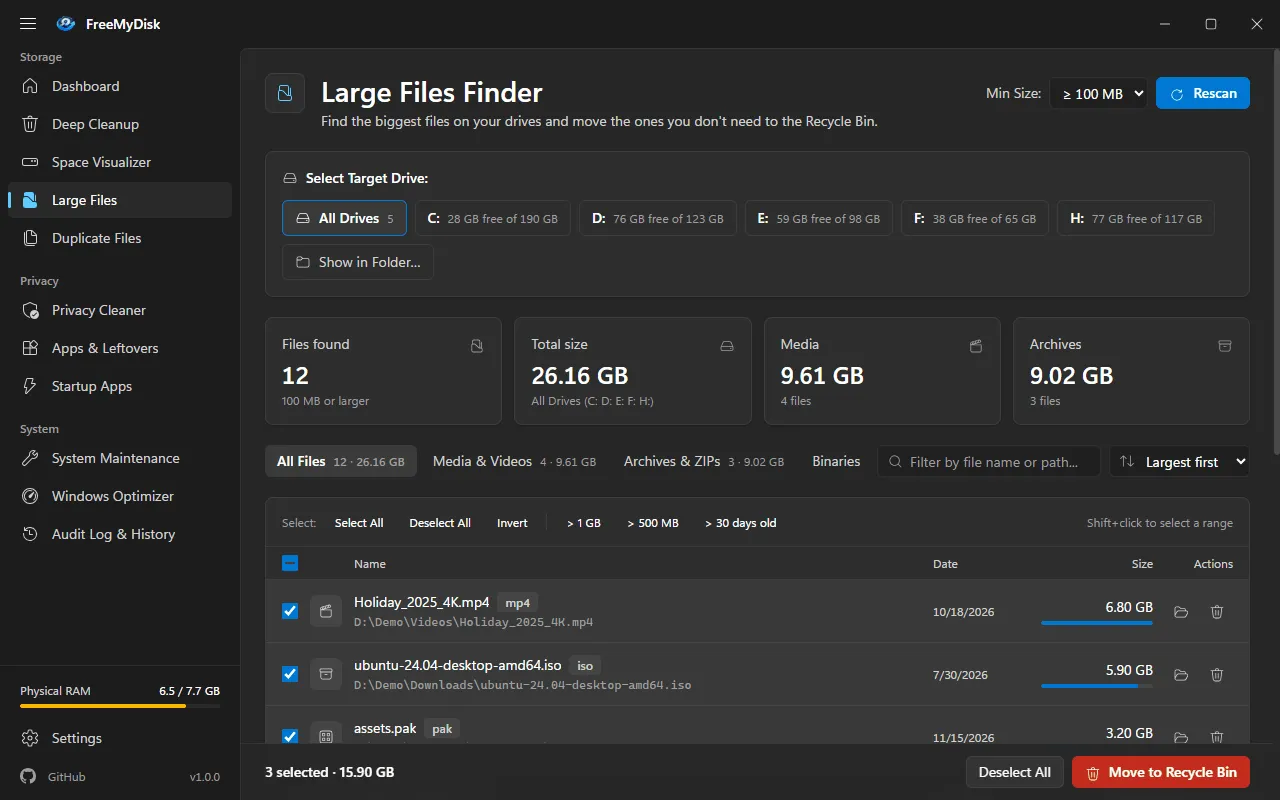
FreeMyDisk also includes a treemap of your drive, a duplicate finder and 122 cleanup rules for app, browser, developer and AI caches. It has no telemetry, no ads and no account.
Summary
- In File Explorer, type
size:giganticorsize:>1GBand sort by size. - On Windows 11, Settings › System › Storage › Cleanup recommendations lists large and unused files.
- PowerShell gives a precise top-25 list of files or folders in seconds.
- A treemap shows where the space is at a glance.
- Delete installers and ISOs, move media and VMs, and leave Outlook data, system files and cloud-synced files alone.
Frequently asked questions
How do I find large files on Windows 11?
Open File Explorer, select This PC, click the search box and type size:gigantic to find files over 4 GB, or size:>1GB for anything over 1 GB. Sort the results by the Size column. Settings › System › Storage › Cleanup recommendations › Large or unused files is another built-in option.
What does size:gigantic mean in File Explorer?
It is one of Explorer's size filters and finds files larger than 4 GB. The others are huge (1–4 GB), large (128 MB–1 GB), medium (1–128 MB), small (16 KB–1 MB) and tiny (up to 16 KB). You can also type an exact size such as size:>2GB.
How do I find the largest files with PowerShell?
Run Get-ChildItem C:\Users -Recurse -File -ErrorAction SilentlyContinue | Sort-Object Length -Descending | Select-Object -First 25 FullName, Length. Change the path to scan another folder or drive.
Which large files are safe to delete?
Installers you have already used, ISO images you can download again, old zip copies of folders you still have and crash dumps are usually safe. Move videos, virtual machine disks and backups to another drive instead of deleting them. Never delete Outlook .pst or .ost files, pagefile.sys, hiberfil.sys or anything inside C:\Windows or Program Files.
Why can't I find what is using my disk space?
Large files are only part of the picture. Space is often taken by thousands of small cache files, by hidden system files such as hiberfil.sys, by System Restore points or by files in folders your account can't read. A treemap or a storage analyzer that runs as administrator shows those too.