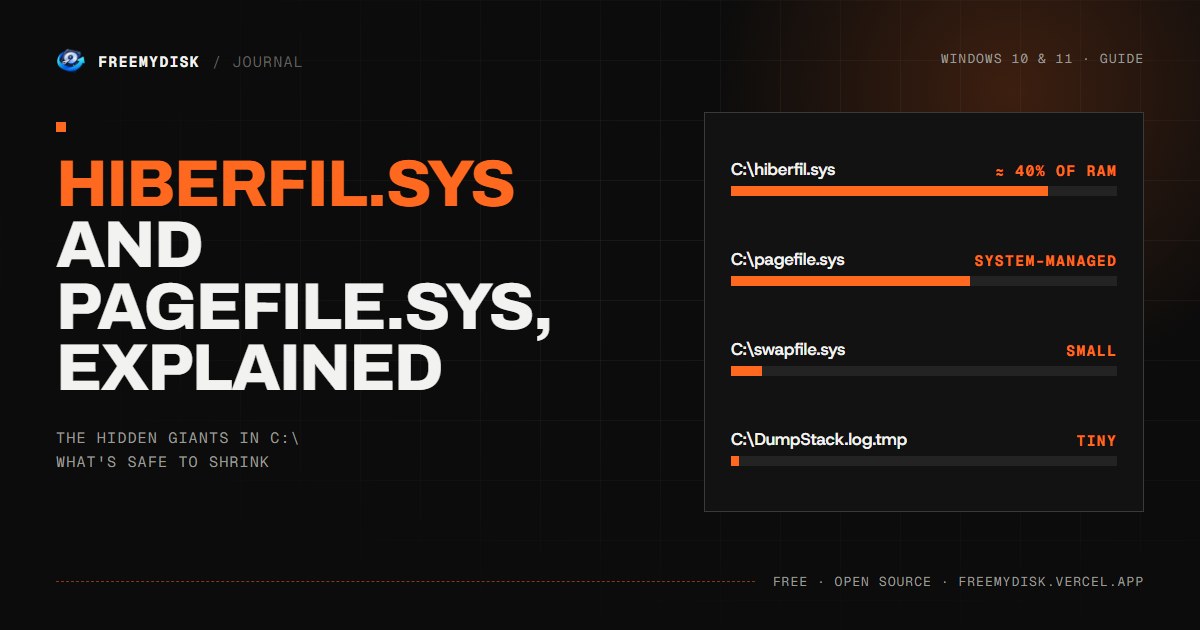
Most people never see the three biggest files on their system drive. hiberfil.sys, pagefile.sys and swapfile.sys live at the root of C:\, hidden from File Explorer, and together they can take up 10, 20 or even 40 GB on a PC with plenty of RAM.
Two of them can be made smaller safely, and one can be removed completely if you don’t need it. This guide explains what each file does, what you give up by shrinking it, and how to do it properly.
The short answer You can remove hiberfil.sys by running
powercfg /h offas administrator, or shrink it by about half withpowercfg /h /type reduced. Leave pagefile.sys in place. You can move it to another drive, but don’t turn it off. swapfile.sys is small and should stay.
How to see these files
Windows hides them because they are protected operating system files. To see them and their sizes, run this in PowerShell:
Get-ChildItem C:\ -Force -File | Where-Object Name -match '\.sys$' |
  Select-Object Name, @{n='GB';e={[math]::Round($_.Length / 1GB, 2)}}
You can also open Settings › System › Storage › Show more categories › System & reserved, where Windows lists Hibernation file and Virtual memory with their sizes.
hiberfil.sys: the hibernation file
What it does
When you choose Hibernate, Windows writes everything in memory to hiberfil.sys and turns the PC off completely. When you start it again, Windows reads the file back, and your apps and documents are exactly where you left them. Unlike sleep, hibernation uses no power at all.
hiberfil.sys is also used by Fast Startup, which is on by default. When you shut down, Windows saves the core of the system (not your apps) to the file, so the next cold start is a few seconds faster.
How big it is
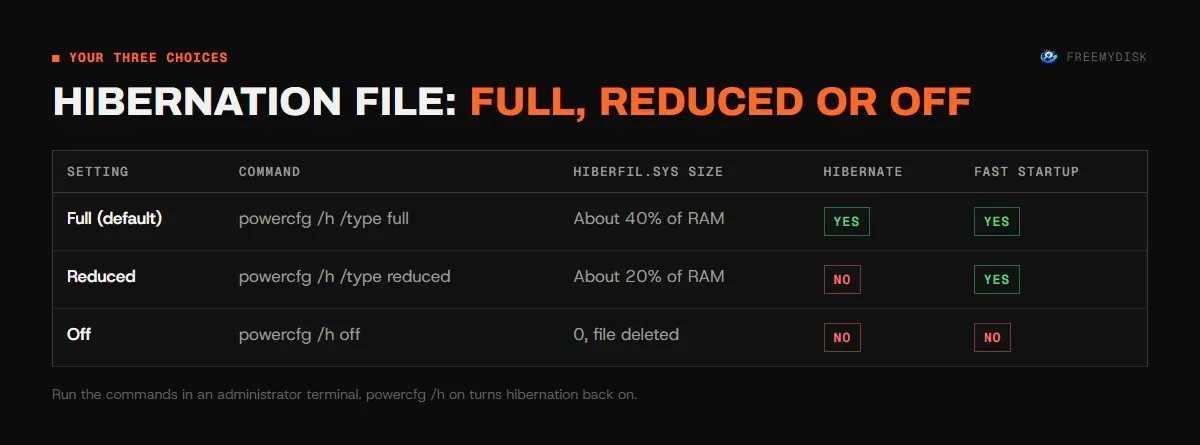
Windows sets the hibernation file to about 40% of your RAM by default. With 16 GB of RAM, that is about 6.4 GB. With 32 GB, it is about 13 GB. With 64 GB, it can be over 25 GB, all for a feature some people never use.
Option 1: Shrink it and keep Fast Startup
If you never use Hibernate but like quick boots, the reduced hibernation file is the best choice. It is roughly half the size of the full one, and it only stores what Fast Startup needs.
-
Right-click Start and choose Terminal (Admin).
-
Run:
powercfg /h /type reduced
The Hibernate option disappears from the power menu, Fast Startup keeps working, and the file shrinks immediately.
Option 2: Turn hibernation off and delete the file
If you don’t use Hibernate and don’t care about Fast Startup, turn hibernation off completely:
powercfg /h offWindows deletes hiberfil.sys on its own. Don’t delete the file by hand. Windows keeps it locked, and you would need workarounds that can leave the power settings in a confused state.
Laptops Hibernation is useful on a laptop you leave in a bag for days, because sleep slowly drains the battery and hibernation doesn’t. Many laptops also hibernate automatically when the battery is critically low. If that matters to you, choose the reduced or full file, not off.
Sleep, hibernate and Fast Startup compared
These three are easy to mix up, and only two of them need hiberfil.sys:
| Sleep | Hibernate | Fast Startup | |
|---|---|---|---|
| What happens | Memory stays powered, everything else turns off | Memory is saved to disk, PC turns off | Core system is saved to disk at shutdown |
| Power used | A little, all the time | None | None |
| Apps and documents | Still open | Still open | Closed, like a normal shutdown |
| Needs hiberfil.sys | No | Yes, full file | Yes, reduced file is enough |
To see which of these your PC supports right now, run powercfg /a in a terminal. It lists the available sleep states and says why any are unavailable, for example when hibernation has been turned off or the PC uses Modern Standby.
If hiberfil.sys comes back
Hibernation settings can be reset by a feature update, by your PC maker’s power software, or by a BIOS update. If the file reappears, check its type with powercfg /a and run your chosen command again. On some laptops, the maker’s utility (for example a “battery saver” or “rapid start” tool) turns hibernation on by itself. Change the setting there too, or it will keep coming back.
Turn it back on
You can change your mind at any time:
powercfg /h on
powercfg /h /type full
Does turning off Fast Startup hurt?
Usually not much. On a modern PC with an SSD, a full cold boot takes only a few seconds longer. Some people turn Fast Startup off on purpose, because a fast-started PC doesn’t fully restart its drivers, and because it can lock other operating systems out of the Windows drive in dual-boot setups. A normal Restart always does a full restart, with or without Fast Startup.
pagefile.sys: the page file
What it does
The page file is Windows’ virtual memory. When the apps you have open need more memory than your PC has, Windows moves memory that hasn’t been used for a while from RAM to the page file, and brings it back when it is needed.
Even on PCs with lots of RAM, the page file does more than you might expect:
- It backs memory that apps reserve but don’t use. Windows guarantees every program the memory it asks for, and the page file is part of that guarantee. Without it, apps can fail with “out of memory” errors long before your RAM is actually full.
- It makes crash dumps possible. When Windows crashes with a blue screen, it writes the dump through the page file on the system drive. Without it, there is nothing to send to a driver vendor or support.
- It keeps idle memory out of RAM, which leaves more room for the file cache and the apps you are using.
How big it is
With the default setting, Automatically manage paging file size for all drives, Windows sizes the page file from your RAM and from how much memory your apps commit. It typically uses several gigabytes and grows during heavy use.
Why you shouldn’t turn it off
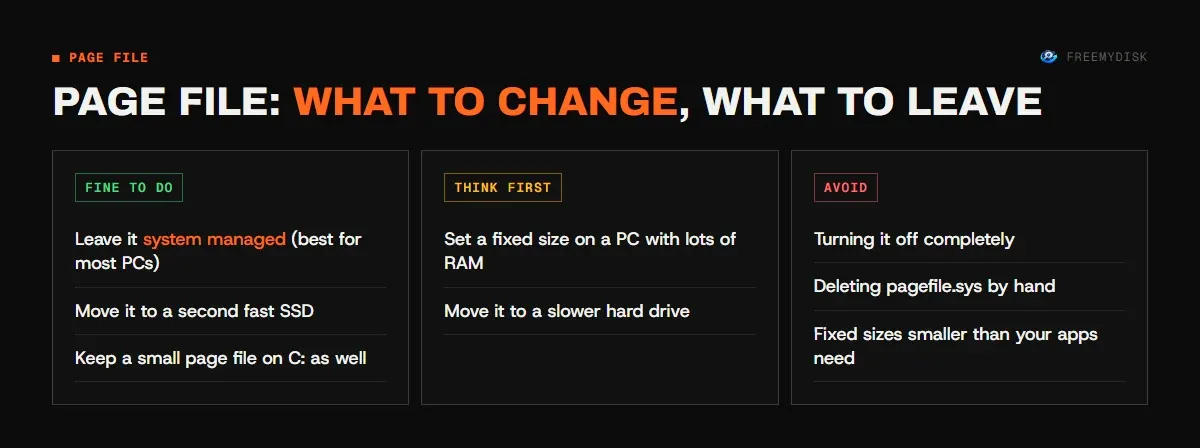
Old advice says that with enough RAM, the page file is useless. In practice, turning it off causes app crashes under load, breaks crash dumps and saves less space than it seems. Some programs, including certain games and creative apps, refuse to start without one.
Option 1: Move the page file to another drive
If you have a second internal SSD with plenty of space, you can move most of the page file there and free space on C:.
- Press Win + R, type
sysdm.cpland press Enter. - Open the Advanced tab, and under Performance select Settings.
- Open the Advanced tab again and, under Virtual memory, select Change.
- Untick Automatically manage paging file size for all drives.
- Select the second drive, choose System managed size and select Set.
- Select drive C:, choose Custom size with a small page file such as 1024 MB initial and 4096 MB maximum, and select Set. Keeping a small page file on C: lets Windows still save crash dumps.
- Select OK and restart your PC.
Don’t move it to an external drive or a slow hard disk. The page file needs a fast drive that is always connected.
Option 2: Let Windows manage it
If your page file is unusually large, it usually reflects how much memory your apps use. Make sure the automatic setting is on and restart. The page file often shrinks again after a restart, once Windows no longer needs the extra space.
Three page file myths
- “Set it to 1.5 times your RAM.” This rule dates from PCs with 512 MB of RAM. On a modern PC it wastes space. Windows’ automatic sizing is smarter, because it looks at how much memory your apps actually commit.
- “A page file wears out your SSD.” Modern SSDs are rated for hundreds of terabytes of writes, and normal paging is a small fraction of that. Turning the page file off to “save” your SSD causes more problems than it solves.
- “Clearing the page file at shutdown frees space.” The policy Clear virtual memory pagefile only overwrites the contents for privacy. The file keeps its size, and every shutdown takes longer.
swapfile.sys
swapfile.sys is a small file Windows uses for Microsoft Store apps. It lets Windows suspend those apps and swap their memory out in one go, which is faster than paging it out piece by piece. It is usually small, and Windows manages it together with the page file. There is nothing to gain by removing it.
Other hidden files you may see at the root of C:
| File or folder | What it is | Leave it? |
|---|---|---|
DumpStack.log.tmp |
Temporary log used while Windows prepares crash dumps | Yes. It is tiny |
C:\$Recycle.Bin |
The Recycle Bin for drive C: | Empty it from the desktop, not here |
C:\System Volume Information |
System Restore points and file history data | Manage it with System Protection settings |
C:\Recovery |
Windows Recovery Environment | Yes |
C:\$WinREAgent |
Temporary folder used while recovery updates install | Leave it until the update finishes |
System Volume Information deserves a mention, because restore points can take 5–10% of your drive. To check and limit them, open Create a restore point from the Start menu, select drive C:, choose Configure and lower Max Usage. Keep at least a few gigabytes so you still have a restore point to fall back on.
How much space can you save?
The numbers depend on your RAM. As a rough guide for a PC with 16 GB of RAM:
| Change | Space freed (approx.) |
|---|---|
| Hibernation file from full to reduced | about 3 GB |
| Hibernation off | about 6 GB |
| Page file moved to another SSD | most of its size, often several GB |
On a PC with 32 or 64 GB of RAM, double or quadruple those numbers. Shrinking the hibernation file is the single biggest, lowest-risk change you can make to Windows’ own files.
What about the rest of the drive?
hiberfil.sys and pagefile.sys are worth checking, but on most PCs the space is spread across thousands of smaller places: browser caches, app logs, game shader caches, developer caches, AI models and old downloads. Our complete guide to freeing up disk space on Windows walks through all of them, and our guide to what Disk Cleanup removes covers the built-in tool.
FreeMyDisk handles the rest, and leaves these files alone
FreeMyDisk is a free, open-source disk cleaner for Windows 10 and 11. It deliberately never deletes hiberfil.sys, pagefile.sys or anything else Windows needs to run, because those are settings to change, not junk to remove. Use the steps in this guide for them.
For everything else, FreeMyDisk does the tedious part:
- 122 cleanup rules for temporary files, update caches, crash dumps, browsers, apps, developer tools and AI apps.
- A treemap and a large file finder that show what is really filling your drive.
- A risk label on every item, and big or valuable caches are never selected for you.
- Recycle Bin first and a crash-safe journal, so every cleanup can be undone.
- No telemetry, no ads and no account.
Summary
- hiberfil.sys is about 40% of your RAM. Shrink it with
powercfg /h /type reduced, or remove it withpowercfg /h offif you don’t need Hibernate or Fast Startup. - pagefile.sys is virtual memory. Keep it. Move it to a second fast SSD if C: is short on space, and leave a small one on C: for crash dumps.
- swapfile.sys is small and should stay.
- Never delete these files by hand. Change the setting and let Windows remove or resize them.
Frequently asked questions
Can I delete hiberfil.sys?
Not directly, because Windows keeps it open. Turn hibernation off with powercfg /h off in an administrator terminal and Windows deletes the file itself. That also turns off Fast Startup. If you want to keep Fast Startup, run powercfg /h /type reduced instead, which roughly halves the file.
Is it safe to turn off hibernation?
Yes. Your PC still sleeps and shuts down normally. You only lose the Hibernate option and Fast Startup, which makes cold boots a few seconds faster on some PCs. You can turn both back on at any time with powercfg /h on.
Can I delete pagefile.sys?
You shouldn't. The page file is Windows' virtual memory. Without it, apps can crash when memory runs low and Windows can't save crash dumps. You can move it to another drive or let Windows manage its size, but keep one.
How big should the page file be?
For almost everyone, let Windows decide by keeping 'Automatically manage paging file size for all drives' ticked. Windows grows and shrinks it based on your RAM and how much memory your apps commit.
What is swapfile.sys?
A small file Windows uses to swap Microsoft Store apps in and out of memory efficiently. It is usually small, and it is managed together with the page file, so there is no reason to remove it.