
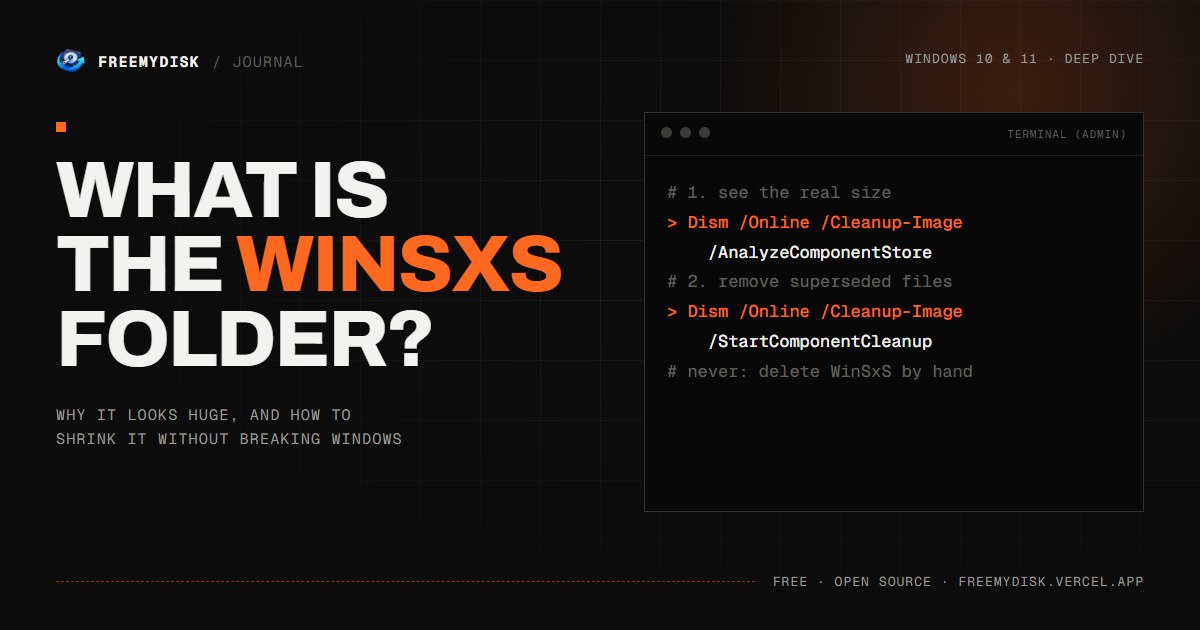
Open C:\Windows in File Explorer, check the properties of the WinSxS folder, and you will often see a number like 10, 15 or even 25 GB. It looks like the perfect thing to delete. It isn’t. WinSxS is one of the few folders on your PC that you must never delete by hand, and it is usually much smaller than it looks.
This guide explains what the folder is for, how to see its real size, and the safe, built-in ways to make it smaller.
The short answer WinSxS is the Windows component store. Windows uses it to install updates, add features and repair itself. Never delete files from it. To make it smaller, run Disk Cleanup › Clean up system files › Windows Update Cleanup, or
Dism /Online /Cleanup-Image /StartComponentCleanupin an administrator terminal.
What is the WinSxS folder?
WinSxS stands for Windows Side-by-Side. The name comes from its original job: letting different versions of the same system library live side by side, so one app could use an old version while another used a new one.
Since Windows Vista, the folder has had a much bigger role. It is the component store, the place where Windows keeps every component that makes up the operating system:
- the files Windows is running right now,
- new versions that updates bring in,
- older versions kept so you can uninstall an update,
- the files for optional features that are turned off, such as Hyper-V or legacy components, so you can turn them on later without the installation media.
When Windows installs an update, it adds the new component versions to WinSxS and points the system at them. When you turn on a Windows feature or run a repair with sfc /scannow or DISM /RestoreHealth, the files come from here too. Without WinSxS, Windows can’t update, change or repair itself.
Why File Explorer shows the wrong size
Most of the files you see in C:\Windows\System32 are not separate copies. They are hard links to files in WinSxS. A hard link is a second name for the same data on the disk, so one file can appear in two folders while using space only once.
File Explorer doesn’t understand this. It counts every hard-linked file once in System32 and again in WinSxS, so the WinSxS folder looks far bigger than the space it really uses. A large part of what Explorer reports is shared with Windows itself and isn’t “extra” at all.
How to see the real size of WinSxS
DISM, the tool Windows uses to service itself, can measure the component store correctly.
-
Right-click Start and choose Terminal (Admin).
-
Run:
Dism.exe /Online /Cleanup-Image /AnalyzeComponentStore
The analysis takes a minute or two and only reads, so it is completely safe. The report looks like this:
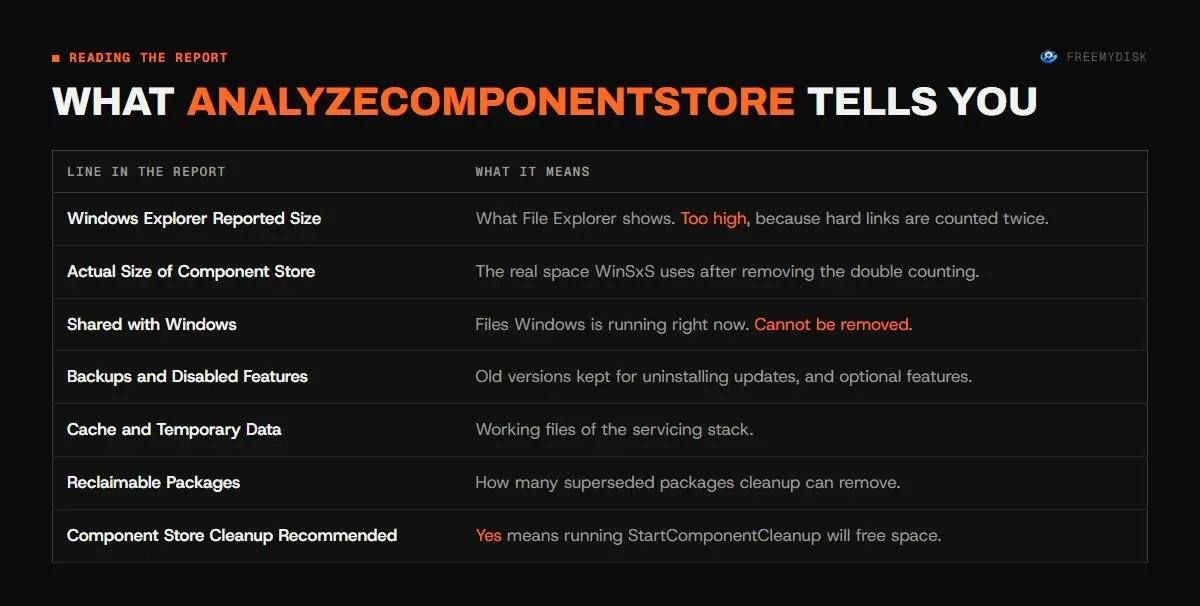
The two numbers that matter:
- Actual Size of Component Store is the real space WinSxS uses.
- Shared with Windows is the part Windows is running from. It can’t be removed, and it is usually the biggest part.
The space you can realistically get back is part of Backups and Disabled Features plus Cache and Temporary Data. If the last line, Component Store Cleanup Recommended, says Yes, a cleanup will free space now.
Safe way 1: Disk Cleanup’s “Windows Update Cleanup”
This is the easiest method, and it needs no commands.
- Press Win + R, type
cleanmgrand press Enter. - Choose drive C:, then select Clean up system files.
- Tick Windows Update Cleanup and select OK.
Disk Cleanup removes older versions of components that newer updates have replaced. It can take several minutes, and part of the work may continue during the next restart. Our guide to every Disk Cleanup option explains the other checkboxes.
Safe way 2: DISM /StartComponentCleanup
DISM does the same cleanup from the command line, and it shows progress as it goes.
Dism.exe /Online /Cleanup-Image /StartComponentCleanupWhen you run it yourself, DISM removes superseded components straight away, without waiting. Run /AnalyzeComponentStore again afterwards to see how much it freed.
Windows also does this on its own. A scheduled task called StartComponentCleanup, under Task Scheduler › Microsoft › Windows › Servicing, runs when the PC is idle and removes superseded components after a grace period, so that a recent update can still be uninstalled for a while. Running DISM by hand simply does that work now.
Tip Run the cleanup after a cumulative update has been installed for a few days and your PC is working well. That way you are not removing the safety net while you still might need it.
Run Windows’ own cleanup task on demand
If you would rather not type DISM commands, you can start the same scheduled task Windows uses, right now:
schtasks.exe /Run /TN "\Microsoft\Windows\Servicing\StartComponentCleanup"The task runs in the background, respects the grace period for recent updates, and stops by itself after a while if there is a lot to do. It is the gentlest option of all, and a good one to put in a monthly routine.
WinSxS compared with the other big Windows folders
WinSxS is often confused with other large folders under C:\Windows. Each one has a different job and a different safe cleanup:
| Folder | What it is | Safe way to make it smaller |
|---|---|---|
C:\Windows\WinSxS |
The component store: every version of every Windows component | Disk Cleanup › Windows Update Cleanup, or DISM /StartComponentCleanup |
C:\Windows\SoftwareDistribution |
Windows Update’s download area and database | Empty Download with the services stopped. See our Windows Update cache guide |
C:\Windows\Installer |
Copies of .msi and .msp installers that programs need to repair and uninstall |
Don’t delete by hand. Uninstall programs you no longer use instead |
C:\Windows.old |
Your previous Windows installation after a feature update | Disk Cleanup › Previous Windows installation(s), once you don’t need to go back |
C:\Windows\Temp |
Temporary files from Windows and installers | Disk Cleanup › Temporary files, or Storage Sense |
If File Explorer says C:\Windows is using 30 GB or more, check each of these with DISM, Disk Cleanup or Settings › System › Storage before you assume WinSxS is the problem.
Going further: /ResetBase (no undo)
/ResetBase makes the cleanup go one step further:
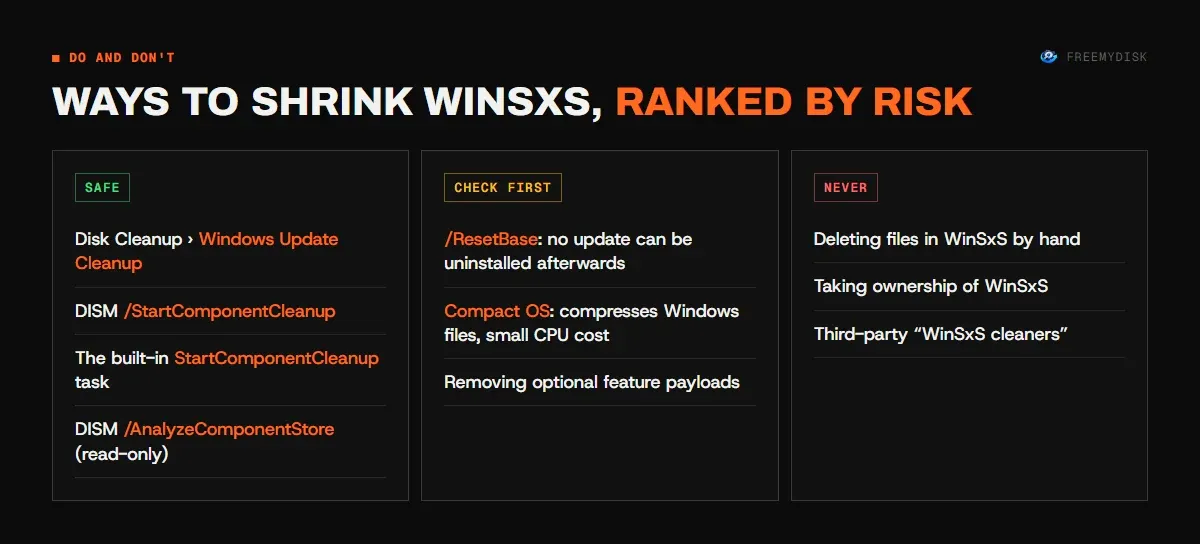
Dism.exe /Online /Cleanup-Image /StartComponentCleanup /ResetBaseIt removes every superseded version of every component. All the updates installed right now become part of the base image, and none of them can be uninstalled afterwards, not even the latest one.
It usually frees only a little more space than the normal cleanup. It makes sense on a PC that has been stable for a while, or before you capture a clean image of a PC. On a PC that just installed an update you are not sure about, skip it.
Other ways to reduce the size of Windows
These options don’t clean WinSxS directly, but they shrink Windows’ total footprint.
Compact OS
Compact OS compresses Windows’ own files on disk. It typically saves a couple of gigabytes, at the cost of a little extra CPU work when those files are read. On a modern PC with an SSD, you will rarely notice the difference. It is designed for devices with small drives.
Check whether it is already on:
compact.exe /CompactOS:queryTurn it on:
compact.exe /CompactOS:alwaysYou can turn it off again at any time with compact.exe /CompactOS:never.
Remove optional features you don’t use
Features you have turned on in Settings › System › Optional features or Turn Windows features on or off use space. If you don’t use Hyper-V, Windows Sandbox, Windows Subsystem for Linux or an old component such as Internet Explorer mode tools, turning them off frees some space. Turning them off is always reversible.
Removing the feature’s files from WinSxS completely is possible with DISM’s /Remove option. After that, Windows needs to download the files, or needs installation media, to turn the feature on again. For most people, turning the feature off is enough.
Turn off hibernation or shrink it
hiberfil.sys is not part of WinSxS, but it is often the biggest system file you can safely change. It can be as large as several gigabytes, depending on your RAM. Our guide to freeing up disk space on Windows explains when to shrink or disable it.
Things you should never do with WinSxS
Many old forum posts and “speed up Windows” videos recommend shortcuts that cause real damage. Don’t do any of these:
- Delete files or folders inside WinSxS by hand. Windows Update will start failing with component store errors, optional features will refuse to turn on, and in the worst case Windows won’t start.
- Take ownership of WinSxS to get around “access denied”. The permissions exist to protect the folder. Changing them can break future updates.
- Move WinSxS to another drive with a junction or symbolic link. Windows doesn’t support it, and updates will fail.
- Run third-party “WinSxS cleaners” that delete files directly. The only safe cleanup goes through Windows’ own servicing stack, which is what Disk Cleanup and DISM use.
If you have already deleted files from WinSxS and Windows Update now fails, run Dism.exe /Online /Cleanup-Image /RestoreHealth followed by sfc /scannow in an administrator terminal. DISM downloads clean copies of damaged components from Windows Update. If that fails too, an in-place upgrade with the Windows installation media repairs Windows while keeping your files and apps.
How much space will you get back?
After months of updates, a component store cleanup often frees somewhere between a few hundred megabytes and several gigabytes. Right after a large cumulative update or a feature update, it can be more. If cleanup has run recently, there may be almost nothing left to remove.
Remember that the number in File Explorer won’t drop by as much as you might expect, because most of what it shows is shared with Windows. Compare the Actual Size in DISM’s report before and after instead.
How often should you clean the component store?
For most people, never by hand. The scheduled task keeps WinSxS in check over time. A manual cleanup is worth doing in three situations:
- After a feature update, once you have decided to keep the new version.
- When your C: drive is nearly full and every gigabyte counts.
- Before you create a system image or a backup, so the image doesn’t carry old component versions.
Running it more often doesn’t help. Once superseded components are gone, there is nothing more to remove until the next cumulative update arrives, usually on the second Tuesday of each month.
Where the real space usually is
WinSxS gets a lot of attention because it lives in C:\Windows and looks huge. On most PCs, though, it is far from the biggest thing you can clean. The space usually goes to:
- App caches: browsers, Discord, Teams, Spotify and game launchers.
- Developer caches: npm, pip, Cargo, Gradle, Maven, NuGet, Docker images and WSL disks.
- AI models: Ollama, LM Studio and Hugging Face downloads, often 4–40 GB each.
- Large files and duplicates you have forgotten about, such as old ISOs, videos and backups.
Clean the rest safely with FreeMyDisk
FreeMyDisk is a free, open-source disk cleaner for Windows 10 and 11, built on the same rule this guide follows: never touch what Windows needs to run. It never removes anything from WinSxS, System32 or other protected system folders. It focuses on the space that is actually safe to reclaim:
- 122 cleanup rules for Windows temporary files, update download caches, crash dumps, browsers, apps, developer tools and AI apps.
- A risk label and the owning app for every item, so you know exactly what each one is.
- A large file finder, a duplicate finder and a treemap that show where the space really went.
- Recycle Bin first and a crash-safe journal, so any cleanup can be undone.
- No telemetry, no ads and no account.
Summary
WinSxSis the Windows component store. Windows needs it to update, add features and repair itself.- File Explorer overstates its size because of hard links. Use
DISM /AnalyzeComponentStoreto see the real size. - Shrink it only with Disk Cleanup › Windows Update Cleanup or
DISM /StartComponentCleanup. /ResetBasefrees a bit more, but makes every installed update permanent.- Never delete files from WinSxS by hand, take ownership of it or move it.
Frequently asked questions
Can I delete the WinSxS folder?
No. WinSxS is the Windows component store, and Windows needs it to run, update and repair itself. Deleting it, or files inside it, can stop Windows Update from working or stop Windows from starting. You can safely make it smaller with Disk Cleanup's Windows Update Cleanup or DISM's StartComponentCleanup.
Why is the WinSxS folder so big?
Mostly it isn't. Many files in WinSxS are hard links to files in C:\Windows\System32, and File Explorer counts them twice. Run Dism /Online /Cleanup-Image /AnalyzeComponentStore to see the actual size, which is usually much smaller than Explorer reports.
Is DISM /StartComponentCleanup safe?
Yes. It removes older versions of components that newer updates have replaced. Windows runs the same cleanup on its own with a scheduled task. The only effect is that you can no longer uninstall the updates that were cleaned up.
What does /ResetBase do?
It removes every superseded version of every component, so all currently installed updates become permanent and none of them can be uninstalled. It frees a little more space than StartComponentCleanup alone. Use it only on a PC that is stable after its latest updates.
How big should the WinSxS folder be?
There is no single right size. On a typical Windows 10 or 11 PC the actual size reported by DISM is often between 5 and 15 GB, and most of that is shared with Windows itself and cannot be removed.