

Your browser keeps a copy of almost everything you see online, so pages open faster the next time. Over months, that cache grows to gigabytes, especially if you use several profiles or several browsers. Clearing it frees space and fixes many “this page looks broken” problems.
The catch is the clear browsing data dialog. Tick the wrong box and you are signed out of every website, or lose your history. This guide shows how to clear only the cache in every major browser on Windows, where the cache lives, and how to keep it from growing back.
The short answer In any browser, press Ctrl + Shift + Delete, set the time range to All time (or Everything), tick only Cached images and files (Firefox: Temporary cached files and pages), and select Clear. Your passwords, cookies and history are not touched.
Cache, cookies and history are different things
The clear browsing data dialog mixes several kinds of data. Only one of them is pure cache.
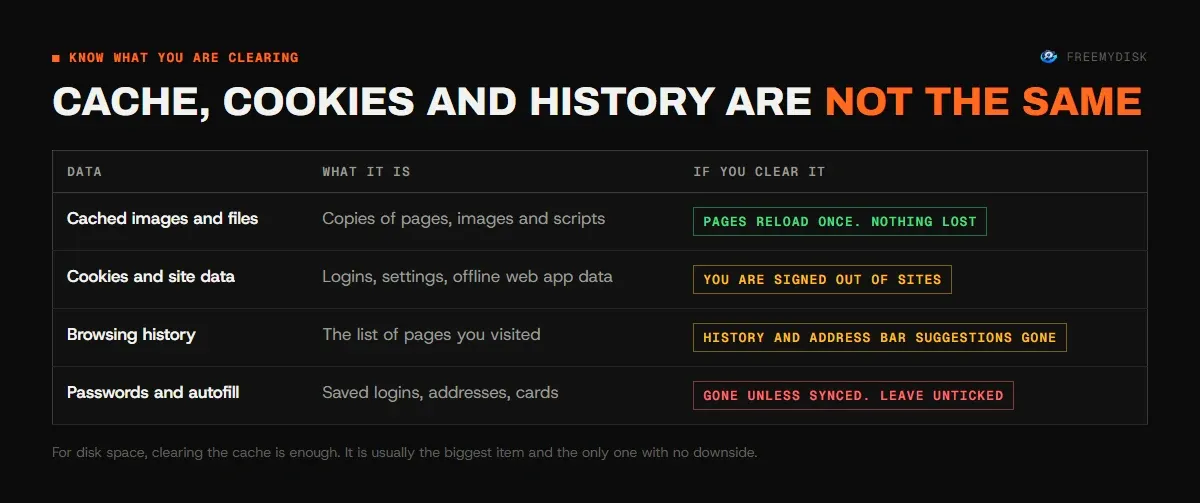
For disk space, the cache is what matters. It is usually the biggest item, and clearing it costs you nothing except one slower load per site.
Cookies and site data are where things go wrong. Clearing them signs you out of every website and can remove offline data that web apps such as Gmail offline, Google Docs offline or web-based music players keep. Only clear cookies when you have a reason to, such as a site that won’t load or privacy.
Google Chrome
- Press Ctrl + Shift + Delete, or open the ⋮ menu › Delete browsing data.
- Open the Basic or Advanced tab. Set Time range to All time.
- Tick Cached images and files. Untick Browsing history and Cookies and other site data if you want to keep them.
- Select Delete data.
Chrome shows an estimate next to Cached images and files, such as “Frees up 640 MB”. If you use several Chrome profiles, repeat this in each one. Every profile has its own cache.
Chrome’s extra caches. Chrome also keeps a Code Cache of compiled JavaScript and a GPUCache of compiled graphics shaders. The dialog clears part of these. Deleting the folders directly, with Chrome closed, clears all of it (see below).
Microsoft Edge
- Press Ctrl + Shift + Delete, or open Settings › Privacy, search, and services › Delete browsing data › Choose what to clear.
- Set Time range to All time.
- Tick Cached images and files. Leave Cookies and other site data and Passwords unticked.
- Select Clear now.
Edge can also clear the cache every time you close it: in Settings › Privacy, search, and services › Delete browsing data, open Choose what to clear every time you close the browser and turn on Cached images and files. That keeps the cache small automatically.
Mozilla Firefox
- Press Ctrl + Shift + Delete, or open Settings › Privacy & Security › Cookies and Site Data › Clear Data.
- Choose Everything as the time range.
- Tick Temporary cached files and pages only.
- Select Clear.
Firefox has another option worth knowing. In Settings › Privacy & Security › History, choose Use custom settings for history, tick Clear history when Firefox closes, select Settings, and tick only Cache. Firefox then empties its cache every time you close it, and keeps everything else.
Brave
Brave is built on Chromium, so the steps are the same as in Chrome:
- Press Ctrl + Shift + Delete, or go to Settings › Privacy and security › Delete browsing data.
- Set Time range to All time.
- Tick Cached images and files only.
- Select Delete data.
Brave can also clear data on exit. On the On exit tab of the same dialog, tick Cached images and files.
Opera, Opera GX and Vivaldi
All three are Chromium browsers too. Ctrl + Shift + Delete opens their clear data dialog, and the cache item has the same name: Cached images and files. Opera GX also has a Cleaner in its GX Control panel, which can clear the cache in one click.
Where the cache lives on Windows
If you prefer to see the files, or a browser won’t open, here is where each browser keeps its cache:
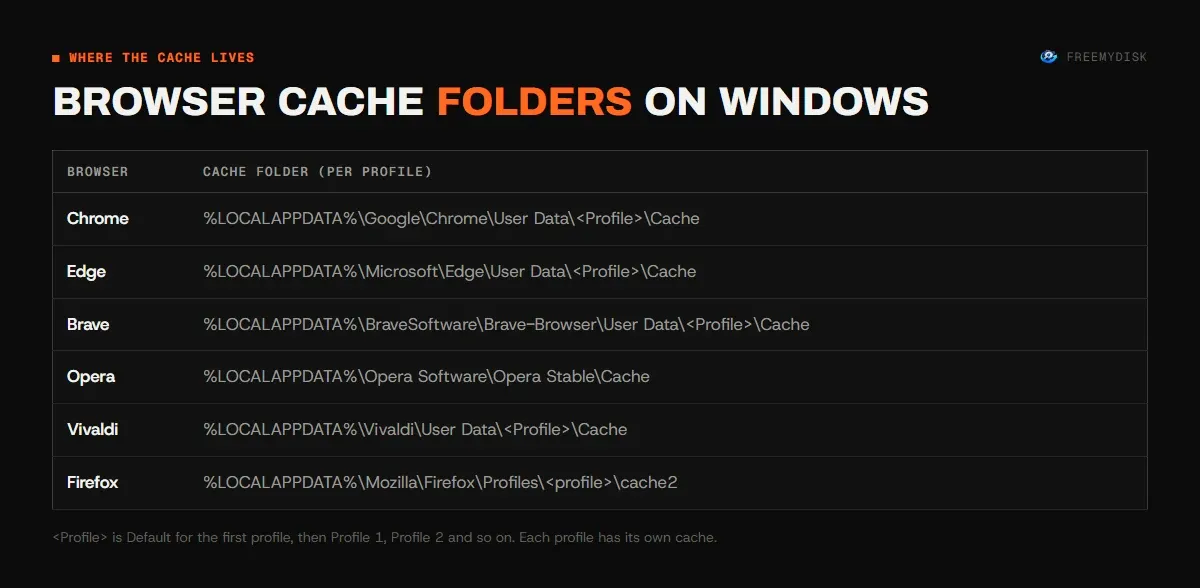
%LOCALAPPDATA% is C:\Users\YourName\AppData\Local. Paste the path into File Explorer’s address bar to open it.
Clear the cache folders directly
This works for any Chromium browser (Chrome, Edge, Brave, Opera, Vivaldi):
- Close the browser completely. Check the notification area for a background icon, and turn off Continue running background apps when closed in the browser’s settings if needed.
- Open the profile folder, for example
%LOCALAPPDATA%\Google\Chrome\User Data\Default. - Delete the contents of these folders, not the folders themselves:
Cache,Code Cache,GPUCache. - Repeat for other profiles (
Profile 1,Profile 2and so on).
For Firefox, close it and delete the contents of cache2 inside your profile folder under %LOCALAPPDATA%\Mozilla\Firefox\Profiles.
Careful Only delete the cache folders. The same
User DataandProfilesfolders also hold your bookmarks, passwords, extensions and settings. Deleting the whole profile folder is the same as starting a new browser from scratch.
Measure the cache with PowerShell
To see how big every Chromium profile’s caches are at once:
$roots = @(
  "$env:LOCALAPPDATA\Google\Chrome\User Data",
  "$env:LOCALAPPDATA\Microsoft\Edge\User Data",
  "$env:LOCALAPPDATA\BraveSoftware\Brave-Browser\User Data"
)
foreach ($r in $roots) {
  if (Test-Path $r) {
    Get-ChildItem $r -Directory | ForEach-Object {
      $mb = (Get-ChildItem (Join-Path $_.FullName 'Cache'), (Join-Path $_.FullName 'Code Cache'), (Join-Path $_.FullName 'GPUCache') `
              -Recurse -File -Force -ErrorAction SilentlyContinue | Measure-Object Length -Sum).Sum / 1MB
      if ($mb -gt 1) { "{0,8:N0} MB  {1}" -f $mb, $_.FullName }
    }
  }
}
When clearing the cache fixes problems
Clearing the cache isn’t only about space. It is also the first fix for many browser problems:
- A site looks broken or shows an old version after an update.
- Images or styles don’t load, or a page keeps showing an error that is already fixed.
- A web app misbehaves after it was updated on the server.
For a single site, you don’t need to clear everything. Open the site, press Ctrl + Shift + R (or Ctrl + F5) for a hard reload that skips the cache. In Chromium browsers, you can also open developer tools with F12, then right-click the reload button and choose Empty cache and hard reload.
Clear the data of a single site
Sometimes only one site is the problem, or one web app has stored a lot of data. You can clear just that site and keep everything else.
Chrome, Edge and Brave:
- Open the site.
- Click the icon to the left of the address (the “tune” or lock icon) and choose Site settings, or Cookies and site data in Edge.
- Select Delete data (Chrome and Brave) or Clear data (Edge).
To see which sites store the most, open chrome://settings/content/all in Chrome or Brave, or edge://settings/content/allSiteData in Edge, and sort by data stored.
Firefox: open Settings › Privacy & Security › Cookies and Site Data › Manage Data. The list shows each site’s storage, and you can remove the ones you choose.
This removes that site’s cookies and stored data too, so you will need to sign in to that site again. Other sites are not affected.
Does clearing the cache make the browser faster?
Usually not. The cache exists to make browsing faster, so emptying it makes the next visit to each site a little slower. The browser itself doesn’t speed up because the cache is smaller.
Clearing it does help in three situations:
- The cache is corrupted, and pages show errors or old content.
- The drive is almost full, and Windows itself is slowing down for lack of space.
- A web app was updated and the old version keeps loading from the cache.
If your browser feels slow in general, the cause is more often too many open tabs, a heavy extension or an outdated browser. Check Task Manager inside the browser, with Shift + Esc in Chrome and Edge, to see which tab or extension uses the most memory.
On a work or school PC
If your browser is managed by your organisation, some options may be greyed out, or the browser may clear the cache on its own on a schedule. Your IT department controls those settings through policy. You can still clear the cache yourself with Ctrl + Shift + Delete unless that has been blocked too.
Other browser data that takes space
The cache is the biggest item, but not the only one:
- Service worker caches. Web apps store offline copies of themselves in
Service Worker\CacheStorage. These can grow to hundreds of megabytes per app. They belong to Cookies and other site data, so clearing them signs you out of those apps. - Old profiles. A profile you no longer use still has its full cache, history and extensions. Remove it from the browser’s profile menu.
- Downloads. Everything you have downloaded is in your
Downloadsfolder, not the cache. Sort it by size and clean it separately. - Built-in AI features. Recent versions of Chrome and Edge can download on-device AI models for features such as writing help. These are stored in the browser’s
User Datafolder and can take several gigabytes. You can turn the features off in the browser’s settings if you don’t use them.
Can you limit the cache size?
Browsers size their cache automatically, based on free disk space, and most no longer offer a simple setting for it:
- Firefox lets you set a fixed size. Open
about:config, setbrowser.cache.disk.smart_size.enabledtofalse, and setbrowser.cache.disk.capacityto a size in kilobytes, for example512000for about 500 MB. - Chrome, Edge and Brave have no setting in the menus. Organisations can cap the cache with the DiskCacheSize policy. At home, clearing the cache on exit (Edge and Brave) or a regular monthly clear is the practical option.
A smaller cache means more downloading on every visit, so don’t set it too low. A few hundred megabytes is a sensible minimum.
Keep the cache under control
- Clear the cache on exit in Edge, Firefox or Brave, as shown above. Pages load a little slower on the first visit of each session, but the cache never grows.
- Use fewer profiles. Each profile has its own full cache.
- Use one main browser. Two browsers used every day means two caches of the same sites.
- Clean monthly. A monthly clear of the cache is plenty for most people.
Clear every browser at once with FreeMyDisk
Clearing six browsers and their profiles one by one gets tedious. FreeMyDisk is a free, open-source disk cleaner for Windows 10 and 11 that does it in one place:
- Rules for 16 browsers, including Chrome, Edge, Firefox, Brave, Opera, Opera GX, Vivaldi, Arc, LibreWolf, Waterfox, Floorp and Tor Browser.
- Every profile of every browser is included, with the size of each.
- Cache only. Cookies, saved passwords, history and bookmarks are protected and never touched. Service worker caches, which can sign you out of web apps, are a separate item that is never selected for you.
- Open browsers are detected. If a browser is running, its locked files are skipped, and FreeMyDisk offers to close it so the cache can be cleaned.
- Recycle Bin first, a crash-safe journal, and no telemetry, no ads and no account.
It also covers the rest of your PC: Windows temporary files, chat and game apps, developer tools and AI caches, with 122 cleanup rules in total.
Summary
- Ctrl + Shift + Delete opens the clear data dialog in every major browser.
- Tick only Cached images and files (Firefox: Temporary cached files and pages) to free space without losing logins.
- Every profile has its own cache, so repeat it per profile.
- To delete the folders directly, close the browser first and remove only
Cache,Code CacheandGPUCache. - Turn on clear cache on exit in Edge, Firefox or Brave to keep it small automatically.
Frequently asked questions
Will clearing the cache delete my passwords?
No. The cache only holds copies of web pages, images and scripts. Passwords, cookies and history are separate items in the clear browsing data dialog. Tick only Cached images and files and your logins and passwords stay exactly as they are.
What is the shortcut to clear the cache?
Press Ctrl + Shift + Delete in Chrome, Edge, Firefox, Brave, Opera or Vivaldi. It opens the clear browsing data dialog directly, where you can choose the time range and tick only the cache.
How big can the browser cache get?
Each browser sets its own limit, usually somewhere between a few hundred megabytes and a few gigabytes per profile. With several profiles, several browsers and the extra code and GPU caches, the total on one PC is often 2–10 GB.
Is it safe to delete the browser cache folder directly?
Yes, while the browser is fully closed. The browser rebuilds the folder the next time it starts. Delete only the cache folders, such as Cache, Code Cache and GPUCache, never the whole User Data or Profiles folder, which also holds your bookmarks, passwords and extensions.
Will clearing the cache make browsing slower?
For a short time. The first visit to each site after clearing downloads its images and scripts again. After that, the cache refills and pages load as fast as before.