

A few years ago, the biggest files on a typical PC were videos and games. Today, for anyone who runs AI locally, they are models. One small chat model is 2–5 GB. A coding model is 10–20 GB. Try a few image models in ComfyUI or a 70-billion-parameter model in Ollama, and you can lose 100 GB in an afternoon, mostly in folders you never see.
This guide shows where every major AI tool keeps its data on Windows, how to measure it, and how to clean it up or move it to another drive without breaking anything.
The short answer Use each tool’s own commands:
ollama rm <model>for Ollama, My Models › Delete in LM Studio, andhf cache rmorhf cache prunefor Hugging Face. Don’t delete model files by hand while the app is running. To keep your C: drive free, move the model folders to another drive withOLLAMA_MODELS,HF_HOMEor LM Studio’s directory setting.
Five-minute quick wins
If you only have a few minutes, these three steps are safe and usually free several gigabytes:
- Run
hf cache pruneto remove old Hugging Face revisions and unfinished downloads. - Run
pip cache purgeto clear downloaded Python packages, including large PyTorch builds. - Run
ollama listand remove one or two models you no longer use withollama rm.
None of these touch a model you are using, and everything they remove can be downloaded again.
Why AI apps use so much space
Three things make AI storage grow faster than anything else on your PC.
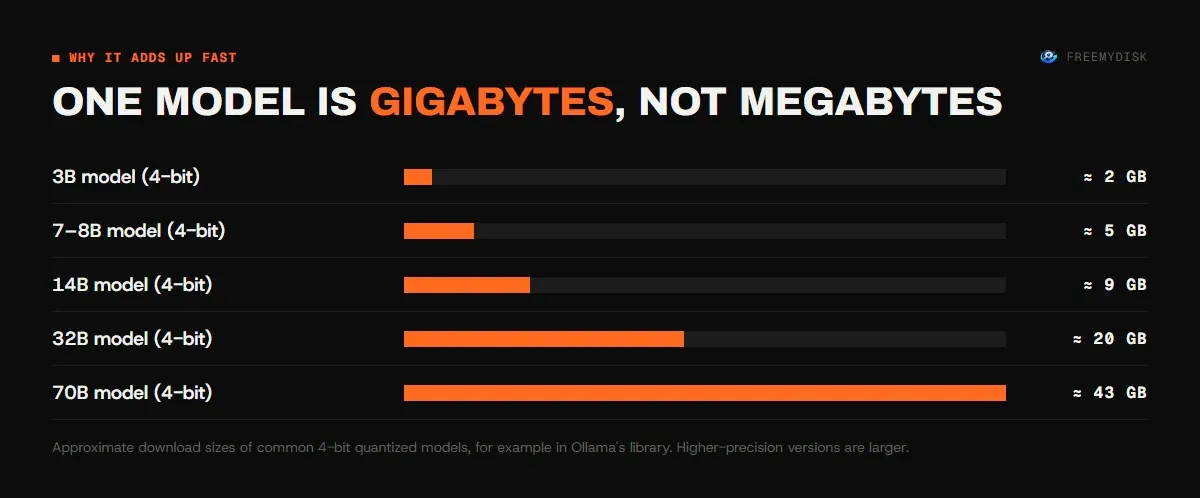
Models are big by nature. A model’s size is roughly its number of parameters multiplied by the bytes per parameter. Most local models are downloaded in a compressed, “quantized” form at about 4 bits per parameter, which is still several gigabytes:
People collect variants. It is common to download the same model in two or three quantizations (Q4, Q5, Q8), plus an instruct version, a coding version and a newer release, and to never remove the old ones.
Each tool keeps its own copy. Ollama, LM Studio, Hugging Face and ComfyUI each have their own model folder and their own file format. The same model downloaded in two apps uses twice the space.
On top of the models, AI tools leave behind Python package caches (a single CUDA build of PyTorch is several gigabytes), unfinished downloads and desktop app caches.
Where AI apps keep their data on Windows
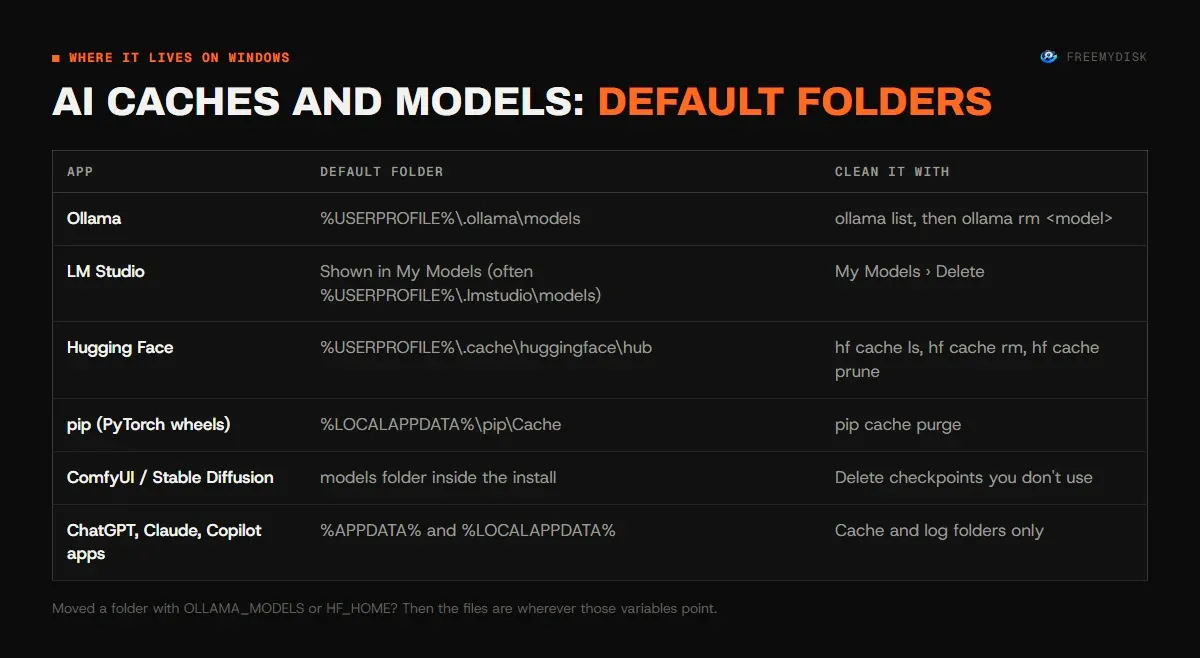
%USERPROFILE% is your user folder, usually C:\Users\YourName. You can paste any of these paths into File Explorer’s address bar to open them.
Measure it first
Before you delete anything, find out where the space actually is. This PowerShell command checks the usual AI folders and prints the size of each one that exists:
$paths = @(
  "$env:USERPROFILE\.ollama\models",
  "$env:USERPROFILE\.lmstudio\models",
  "$env:USERPROFILE\.cache\lm-studio\models",
  "$env:USERPROFILE\.cache\huggingface",
  "$env:LOCALAPPDATA\pip\Cache"
)
foreach ($p in $paths) {
  if (Test-Path $p) {
    $gb = (Get-ChildItem $p -Recurse -File -Force -ErrorAction SilentlyContinue | Measure-Object Length -Sum).Sum / 1GB
    "{0,8:N1} GB  {1}" -f $gb, $p
  }
}
If you have set OLLAMA_MODELS, HF_HOME or a custom LM Studio folder, add those paths to the list.
Ollama
See what you have
Ollama lists every model with its size:
ollama listRemove a model
ollama rm llama3.1:8bUse the exact name and tag from ollama list. Ollama removes the model’s manifest and any data layers no other model uses.
Careful Ollama stores models as shared “blobs” in
.ollama\models\blobs. Two models built on the same base can share a blob. Deleting files fromblobsby hand can corrupt other models, so always useollama rm.
Move Ollama models to another drive
Ollama’s official FAQ uses the OLLAMA_MODELS environment variable for this.
- Quit Ollama: right-click its icon in the notification area and choose Quit Ollama.
- Open the Start menu and search for Edit environment variables for your account.
- Under User variables, select New. Name:
OLLAMA_MODELS. Value: the new folder, for exampleD:\AI\ollama\models. - Move the contents of
%USERPROFILE%\.ollama\modelsto the new folder. - Start Ollama again and run
ollama listto check your models are still there.
LM Studio
LM Studio shows its models folder at the top of the My Models tab. On current versions it is usually %USERPROFILE%\.lmstudio\models. Older versions used %USERPROFILE%\.cache\lm-studio\models.
Remove models
Open My Models, find the model, open its menu and choose Delete. LM Studio removes the files and updates its list. Deleting the .gguf files by hand also works when LM Studio is closed, but the app is the safer route.
Move LM Studio models
In My Models, click the models directory path at the top, choose Change, and pick a folder on another drive. Move your existing model folders there with File Explorer, keeping the same publisher\model folder structure, so LM Studio finds them.
LM Studio and Ollama don’t share model files, even when you download the same model in both. If you use both, keep only one copy and pick one app as your main tool.
Hugging Face
The Hugging Face cache is used by Python libraries such as transformers, diffusers and huggingface_hub, and by many apps built on them. It lives in %USERPROFILE%\.cache\huggingface\hub by default. Newer versions also keep an xet folder next to it for chunked downloads.
List and clean with the hf command
The hf command line tool, part of huggingface_hub, can inspect and clean the cache. Install or update it with pip install -U huggingface_hub, then:
# list cached models and datasets with their sizes
hf cache ls

# only show big entries you haven't used in a month
hf cache ls --filter "size>1GB" --filter "accessed>30d"

# remove a model you no longer need (preview first)
hf cache rm model/stabilityai/stable-diffusion-xl-base-1.0 --dry-run
hf cache rm model/stabilityai/stable-diffusion-xl-base-1.0

# remove old revisions and unfinished downloads
hf cache prune
hf cache prune is the safest quick win. It only removes revisions that no branch or tag points to any more, plus .incomplete files from interrupted downloads.
Windows note Hugging Face saves space by linking files that two revisions share. On Windows, that only works with Developer Mode turned on or with Python run as administrator. Without it, each revision is a full copy, so the cache grows much faster. Turning on Developer Mode in Settings › System › For developers avoids the extra copies for future downloads.
Move the Hugging Face cache
Set the HF_HOME user environment variable to a folder on another drive, for example D:\AI\huggingface, the same way as OLLAMA_MODELS above. Move the contents of %USERPROFILE%\.cache\huggingface there and restart any terminal or app that uses it.
ComfyUI and Stable Diffusion
Image and video generation tools keep their models inside their own install folder, usually in models\checkpoints, models\loras, models\vae and similar subfolders. A single SDXL checkpoint is around 6–7 GB, and video models are often larger.
Clean them by hand: remove checkpoints and LoRAs you no longer use, ideally while the app is closed. ComfyUI also supports an extra_model_paths.yaml file that points it at models on another drive, so several tools can share one model folder instead of keeping copies.
Python and PyTorch caches
Installing AI tools with pip downloads large packages, and pip keeps a copy of every one:
pip cache info
pip cache purge
pip cache purge is safe. Installed packages stay installed, and pip downloads them again only when a new environment needs them. If you use conda, conda clean --all does the same for conda’s package cache.
Old virtual environments (.venv, venv, env folders inside projects) with a full PyTorch install can be 3–6 GB each. Delete environments for projects you have finished. You can recreate them from the project’s requirements.txt.
AI desktop apps: ChatGPT, Claude, Copilot and coding tools
Desktop apps for ChatGPT, Claude, Gemini and Copilot are built on web technology and keep a browser-style cache, logs and crash reports in %APPDATA% and %LOCALAPPDATA%. These are usually hundreds of megabytes rather than gigabytes, and are safe to clear while the app is closed.
AI coding tools are different. Command line agents such as Claude Code and Codex keep session histories and logs in your user folder, and AI editors such as Cursor keep large caches. Session histories can be useful later, so review them before you remove them.
Which models can you let go?
Most people keep far more models than they use. A few questions help decide:
- Is there a newer version? When a model family gets a new release, the old one is rarely worth keeping.
- Do you have the same model twice? Look for the same name in Ollama and LM Studio, or the same model in two quantizations. Keep the one you actually run.
- When did you last use it?
hf cache ls --filter "accessed>30d"shows Hugging Face models you haven’t opened in a month. In Ollama,ollama listshows when each model was last modified, which is usually when you downloaded it. - Can you download it again easily? Public models from Ollama’s library or Hugging Face can be downloaded again in minutes on a fast connection. Private, gated or self-made models need a backup first.
How much space should you plan for?
If you are setting up a PC for local AI, these rough budgets help you decide whether models can stay on C: or need their own drive:
| How you use local AI | Typical model storage |
|---|---|
| Trying a few small chat models | 10–20 GB |
| Daily use of two or three 7–14B models | 20–50 GB |
| Coding assistant plus a larger general model | 50–100 GB |
| Image and video generation with several checkpoints | 50–200 GB |
| Comparing many large models | 200 GB or more |
Leave at least 15–20% of your system drive free on top of that. Windows, updates and the page file need room to work, and a nearly full SSD gets slower.
What not to delete
- Models you use offline. On a train or a plane, a deleted model is gone until you have a good connection again.
- Models you fine-tuned or converted yourself. These can’t be downloaded again. Back them up before cleaning.
- The model folder while the app is running. Quit Ollama, LM Studio or ComfyUI first.
- Ollama blobs by hand. Use
ollama rm.
Make it a habit
- Run
ollama list,hf cache lsand LM Studio’s My Models once a month, and remove what you haven’t used. - Keep one app as your main local model runner, so models aren’t stored twice.
- Put model folders on a second drive from the start. It is much easier than moving 200 GB later.
- Run
hf cache pruneandpip cache purgeafter a big round of experiments.
See and clean AI caches with FreeMyDisk
FreeMyDisk is a free, open-source disk cleaner for Windows 10 and 11 with dedicated rules for AI tools, which most cleaners don’t know about:
- Ollama, LM Studio, Hugging Face (including the Xet cache), ComfyUI and Open WebUI.
- AI desktop and coding apps: ChatGPT, Claude Code, Codex, Copilot, Cursor and Gemini.
- Developer caches such as pip, uv and conda.
Every item shows its size, the app that owns it and a risk label. Models are never selected for you: FreeMyDisk lists them so you can see how much each one uses, and you decide what to remove. Removals go to the Recycle Bin by default, with a crash-safe journal and no telemetry.
Summary
- Local AI models are 2–40 GB each, and every tool keeps its own copy.
- Ollama:
ollama listandollama rm. Move withOLLAMA_MODELS. - LM Studio: My Models › Delete. Move from the same tab.
- Hugging Face:
hf cache ls,hf cache rm,hf cache prune. Move withHF_HOME, and turn on Developer Mode to avoid duplicate copies. - Clear
pipandcondacaches, and old virtual environments. - Never delete models you need offline or can’t download again.
Frequently asked questions
Where does Ollama store models on Windows?
In %USERPROFILE%\.ollama\models by default, for example C:\Users\YourName\.ollama\models. If you set the OLLAMA_MODELS environment variable, models are stored in that folder instead.
How do I delete an Ollama model?
Run ollama list to see your models and their sizes, then ollama rm followed by the model name, for example ollama rm llama3.1:8b. Don't delete files from the blobs folder by hand, because several models can share the same blob.
How do I clear the Hugging Face cache?
With the hf command line tool: hf cache ls lists cached models and their sizes, hf cache rm model/<name> removes one, and hf cache prune removes old revisions and unfinished downloads. The cache is in %USERPROFILE%\.cache\huggingface\hub unless HF_HOME or HF_HUB_CACHE points elsewhere.
Where does LM Studio keep models?
The exact folder is shown at the top of the My Models tab. On current versions it is usually %USERPROFILE%\.lmstudio\models, and older versions used %USERPROFILE%\.cache\lm-studio\models. You can change it from the same tab.
Can I move AI models to another drive?
Yes. For Ollama, quit it, set the OLLAMA_MODELS user environment variable to a folder on the other drive and move the models folder there. For Hugging Face, set HF_HOME. For LM Studio, change the models directory in My Models.
Is it safe to delete AI model caches?
Yes, as long as you don't need the model offline right now. Models are downloaded files, so you can always download them again. The cost is time and bandwidth, which can be significant for models of 20 GB or more.